With our free alerts, you can keep tabs on your enviro™ Visa* card account activity, monitor your spending, and more. Set up enviro™ Visa* alerts to inform you of your everyday transactions via text message or email.
Alerts can be set up through Digital Banking and the Manage my Visa* card website:
- The following alerts can be set up by logging in to the Digital Banking and the Manage my Visa* card website:
- When you are about to reach your credit limit.
- When an upcoming credit card payment is due soon.
- When your card is used outside of specified countries.
- When your card is used for an online purchase or refund.
- When a transaction is declined.
- When a purchase or refund exceeds a set amount.
More information about card controls features here.
More information about fraud alerts, click here.
More information about Manage my Visa* card can be found here.
More information about how to set up alerts in online banking can be found here: enviro™ Visa* alerts – Learning Hub)
Additional alerts are available for enviro™ Visa* Business cardholders through Spend Clarity. To learn more, click here.
enviro Visa card alert FAQs
For alerts set up on the Manage my Visa* card website: All primary Vancity Visa* cardholders of personal use cards and account administrators of business use cards can receive alerts.
Authorized users will not be able to manage or receive alert features through Manage my Visa* card.
For alerts set up through Digital Banking: All Vancity members who are the primary cardholders of personal use Visa* cards can receive alerts.
Similar Visa alerts are available through the Manage my Visa* website and Online Banking.
Both offer alerts for:
- Payment coming due
- International transaction
- Online and phone transactions
- Transaction declined
- Purchase amount
- Available credit below a customizable threshold
- Transactions made outside of Canada.
- Declined transactions due to card controls.
- Account balance about to reach your credit limit.
- Upcoming credit card payment is due soon.
As more alerts are available through Manage my Visa* card to personal and business cardholders, we recommend setting them up there if they are similar to digital banking. However, both options are available to personal cardholders who are members!
Step 1: log in to Digital Banking
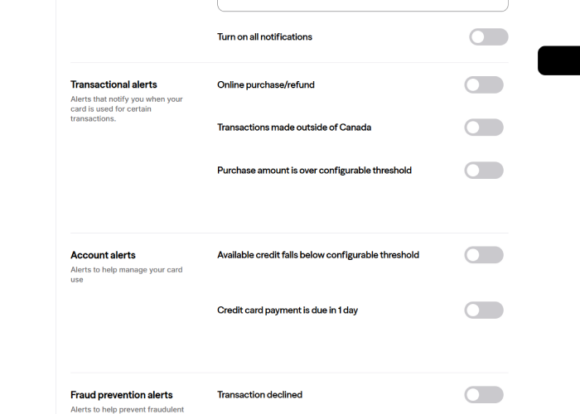
Navigate to the credit card section, click on your credit card, then click Manage alerts.
Step 2: On the manage alerts page you can set up, manage and view your alerts.
To set up alerts, turn on all notifications or toggle on specific alerts. Choose your email address or phone number or both for where you want to receive the alert.
Step 3: Confirm your alert preferences.
Alerts are sent via text messages and/or email, so please remember to check and update your contact information regularly. You must opt in and set up alerts on the Manage my Visa* card website or through online banking.
Fraud alerts are the only exception—you are automatically opted in and no manual set up is required to receive these alerts.
There are no fees associated with signing up to receive transactional alerts set up through Manage my Visa* card or online banking. However, you should check with your wireless carrier as they may charge you for sending/receiving text messages and data usage.
But fraud alerts are different—text messages are always free.
To start receiving alerts about your transactions, you must opt in and manually set up enviro™ Visa* alerts by logging into Manage my Visa* card or through online banking. Fraud alerts are different—they are automatically set up to alert you of suspicious activity or potential fraud. Visit Fraud Alerts – Learning Hub to learn more about fraud alerts.
Manage my Visa card alerts: Alerts will not need to be setup again if your card is replaced after being lost or stolen (new card number) or renewed when it’s about to expire (same card number but new expiration date).
Online Banking alerts: If you get a new enviro™ Visa* card you will need to set up alerts again if your card is lost or stolen and your card number has changed.
Alerts will not need to be set up again if your card is replaced and retains the same number as your previous card.
Other circumstances where you would have to re-enrol include:
- Your contacts are deleted.
- The last Visa* alert is unsubscribed.
A short code is a special number used to send and receive text messages. Enviro™ Visa* alerts will only come from 253781, 253782, 67879 or 79624. Please check the number you receive the alert from.
For your security, we also recommend that you never click on links in text messages. Vancity would never include a link in a text message.
If you’ve stopped receiving banking alerts via text message, it may be because you previously replied STOP to one of our alert messages.
Replying with STOP unsubscribes you from all SMS alerts, even if your alert preferences are still turned on in digital banking.
To start receiving alerts again, simply reply with START to any previous alert message or text START to the Vancity Alerts number.
Tip: If your alert settings look correct in digital banking but you’re not receiving texts, check whether you’ve replied with STOP in the past.
If you need help reactivating alerts or aren’t sure why they’ve stopped, please contact us and we’ll be happy to assist.
Here are a few possible reasons why you didn’t receive an alert notification:
Manage my Visa* card alerts:
- If you are expecting an email notification, check if the alert message is in your junk folder. If you see it there, add the email address “Visa_alert@alert.vancity.com” to your contacts to make sure you get future emails.
- If you responded STOP to any text message alert, you would not receive any further alerts to that mobile number. You will need to set up the mobile phone number again by contacting Card Services (Toll-free number: 1-888-877-4543 & 604-877-4543) to have it unblocked.
- If you have multiple cards, you can set up different alerts on each card. Log in to Manage my Visa* and check that you have signed up for the alert you are expecting on the Visa card you want to receive the alert on.
Online Banking alerts:
- If you are expecting an email notification, check if the alert message is in your junk folder. If you see it there, add the email address “DoNotReplyVancity@visa.com” to your contacts to make sure you get future emails.
- If you responded STOP on a text message, you would not receive any further alerts to that mobile number. You will need to set up the mobile phone number again in Online banking.
- If you have multiple cards, you can set up different alerts on each card. Log in to Online banking and check that you have signed up for the alert you are expecting on the Visa card you want to receive the alert on.
If you opted in for transaction alerts via Manage my Visa* card or online banking, you have the option to turn off your alerts or change the types of alerts you receive. You may reply “STOP” to the text message and this will turn off these transactional alerts.
To change your alert settings on Manage my Visa* card, refer to the instructions in, “How do I unsubscribe or deactivate my alerts in Manage my Visa* card,” under the title, “How to set up and manage alerts on Manage my Visa*,” on this page.
You can also change your alert settings through online banking. Follow the instructions in, “How do I manage/add alerts on online banking,” under the title, “How to set up and manage alerts through online banking,” on this page.
For fraud alerts, opting in is not a requirement. You can choose to not receive future fraud alerts by replying “STOP” to the text message specific to this alert. However, you will still receive email alerts for fraud if you have an up-to-date email address on file.
For more information on fraud alerts, click here.
Manage my Visa* card alerts: Yes. Call Card Services and one of our agents will be able to support you in setting them up again:
Metro Vancouver: 604-877-4543
Toll-free within Canada and US: 1-888-877-4543
Toll-free international: IAC-800-500-0707-0
(IAC = International Access Code, varies by country)
Online Banking alerts: Yes. Log into online banking and set up your mobile phone number again.
Fraud alerts: You can opt back in by calling Card Services at 1-833-470-5355.
You can turn off your enviro™ Visa* alerts by logging into Manage my Visa* card or Online Banking from any desktop computer. Please keep in mind that if you change your phone number you will have to set up the alerts again.
How to set up and manage alerts on Manage My Visa
All alerts available through the Manage my Visa* card website can be set up through your browser using a computer or mobile device.
There are seven alerts available:
- Remaining credit limit: This alert notifies you when your available credit is equal to or less than your specified amount. You can customize the threshold amount to help prevent you from going over your credit limit.
- Payment coming due: This alert notifies you when your upcoming credit card payment is due.
- International transaction: This alert notifies you when your card is used outside of the countries you specify.
- Online transaction: This alert notifies you when your card is used for an online purchase or refund.
- Credit card authorization declined: This alert notifies you when a transaction is declined due to your card control settings. Find out more about how to set up your card controls here.
- Transaction declined: This alert notifies you when a transaction on your card has been declined
- Transaction amount: This alert notifies you when a purchase or refund equal to or over your specified threshold amount is made on your card
Only 1 alert will be sent to you for any transactions declined due to your card control settings (regardless of the number of controls set up on the card).
Note: If you opted-in for the “Transaction declined” Visa* alert through online banking, you will also receive this alert.
Turning these alerts on will not restrict spending or decline the transaction.
These alerts keep you informed of when you are about to reach your pre-determined available credit limit. To prevent going overlimit, we encourage you to make a payment or call Card Services at 1-800-611-8472 for a credit limit increase review.
To unsubscribe from a specific alert, unselect the ‘Email’ and/or ‘Text message’ icons for this alert and click save. A message will pop up at the bottom confirming that your alert has been updated successfully.
To unsubscribe from all alerts in 1-click, click the ‘Unsubscribe’ button. A message will pop up verifying that you have successfully unsubscribed from the alerts.
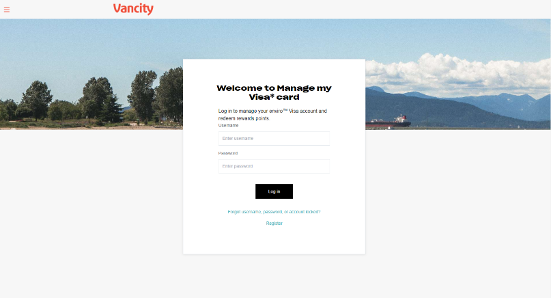
| Step 1: log in to Manage my Visa* card by entering your username and password.
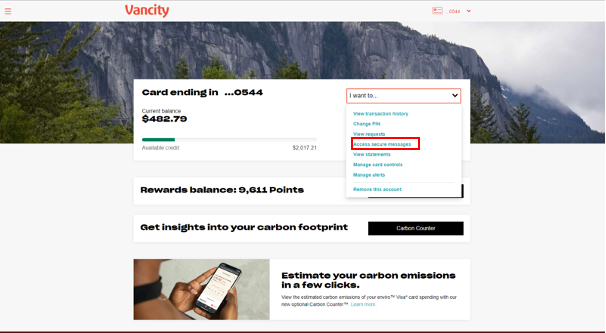
Once logged into your account, from the drop-down menu, select ‘I want to’ and choose ‘Manage alerts.’
OR
Navigate to the left menu by clicking the hamburger menu icon at the top left and select ‘Manage alerts.’ |
   |
| Step 2: Manage your notification methods for receiving your alerts.
Click the ‘Contact Information’ button on the Alerts page. A side menu will appear where you can verify your phone and email details.
To set up a phone number that you want to receive text message alerts on, you will need to have the phone nearby as a verification message will be sent that requires a response from you. You will be required to check the box and click save next to the phone number that will be receiving text message alerts.
After selecting a phone number, a message will pop up at the bottom of the screen confirming that your phone number has been updated successfully.
At the same time, you will receive a text message to verify your phone number coming from the 67879 short code. You will need to reply with “AGREE” within 30 minutes of receiving this text message to finalize the verification of your phone number.
When successfully verified, the message “Verified” will appear in front of your phone number. |
    |
| To update your email and phone number, please follow the steps below.
Email: 1. Navigate to the hamburger icon located at the top left of the screen. From the side menu, choose to ‘Manage profile.’ 2. In the email section, click on the pencil icon and update your email address.
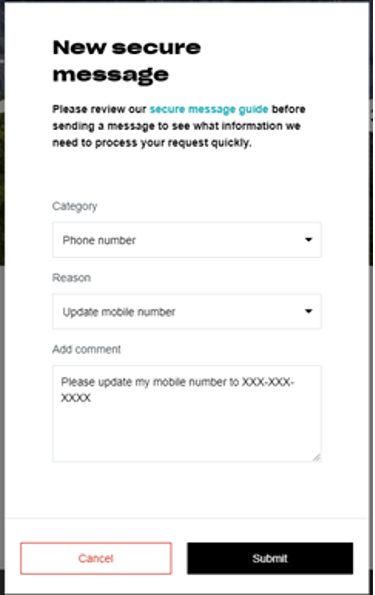
Phone: 1. If you are a personal use cardholder, you can update your phone number by clicking the ‘I want to’ drop-down menu on the Manage my Visa* card home page and select ‘Access secure messages.’ 2. From the Secure messages page, click the ‘Create new message’ button and under the ‘Category’ drop-down menu, select ‘Phone number’. 3. Under the ‘Reason’ drop-down menu, select ‘Update mobile number’. 4. Under the ‘Add comment’ section, enter your new mobile number and click submit.
If you are a business cardholder, please call 1-800-611-8472.
|
   |
| Step 3: Activate your alerts.
Under ‘Manage alerts’ select the enviro™ Visa* card you wish to add an alert to.
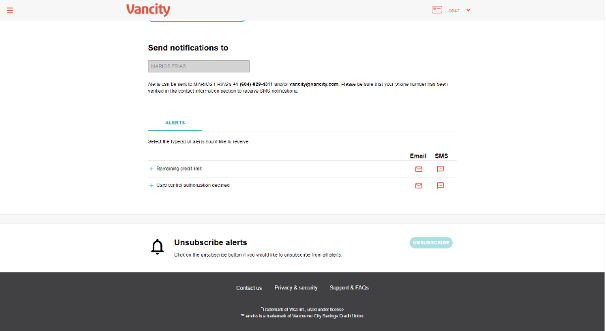
Under ‘Send notifications to’ there are 3 tabs available to select your alerts:
Transaction alerts
Select ‘Email’ and/or ‘Text message’ to activate and click save. A message will appear at the bottom of the screen to confirm that your alert has been updated successfully. When you enrol in this alert, you will receive an email and/or text message alert when your card is used for an online transaction. Note: You will not receive this alert if the transaction is a recurring payment.
Specify the countries for which you want to receive alert if a transaction is made outside of. The default country is set to Canada but can be modified using the drop-down list. Note: You will not receive this alert if the transaction is a recurring payment. Simply enter the countries, select your alert method of choice from ‘Email’ and/or ‘SMS,’ and click save. A message will appear at the bottom of the screen to confirm that your alert has been updated successfully.
Specify the transaction amount threshold that you want to receive an alert for. The default is set to $1 but can be modified to the amount of your preference. Simply enter the number of days, select your alert method of choice from ‘Email’ and/or ‘SMS,’ and click save. Note: You will not receive this alert if the transaction is a recurring payment. A message will appear at the bottom of the screen to confirm that your alert has been updated successfully. Account alerts
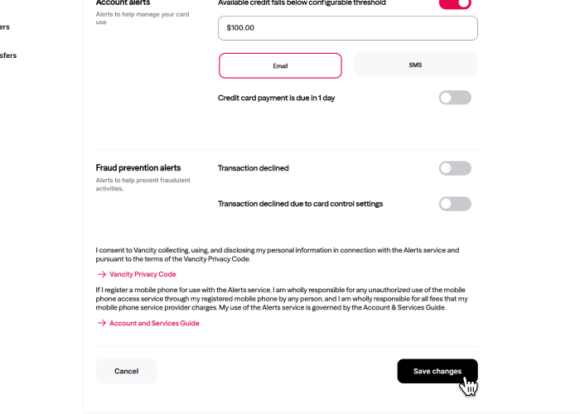
The default amount is set to be $100 but can be customized to fit your spending preference and prevent over-limit fees from occurring. Simply enter your preferred dollar amount, select your alert method of choice from ‘Email’ and/or ‘Text,’ and click save. A message will appear at the bottom of the screen to confirm that your alert has been updated successfully. When you enrol in this alert, you will receive an email and/or text message alert when the remaining credit limit threshold is surpassed.
Specify how many days before the credit card payment due date you want to receive the alert. The default is set to 1 day but can be modified to the number of your preference as long as the value is at least 1 . Simply enter the number of days, select your alert method of choice from ‘Email’ and/or ‘SMS,’ and click save. A message will appear at the bottom of the screen to confirm that your alert has been updated successfully. Fraud prevention alert
Select ‘Email’ and/or ‘Text message’ to activate and click save. A message will appear at the bottom of the screen to confirm that your alert has been updated successfully. When you enrol in this alert, you will receive an email and/or text message alert when a purchase authorization is declined as a result of your card control settings.
Select ‘Email’ and/or ‘Text message’ to activate and click save. A message will appear at the bottom of the screen to confirm that your alert has been updated successfully. When you enrol in this alert, you will receive an email and/or text message alert when a transaction is declined on your card.
Note: for all alert options, you need to first verify your phone number to start receiving text message notifications. Please refer to Step 2 for phone number verification. |
    |
How to setup and manage alerts through online banking
Online banking enviro™ Visa* alerts are not available at this time for non-member cardholders or business accounts. These alerts cannot be set up through the Vancity mobile app or mobile web—you must use our desktop/full site instead.
We encourage you to do a test to see if you’re receiving alerts via email and/or text messages. If you have not received an alert, please check your junk email folder. Please add “no-reply@vancity.com” to your contacts.
You will need the email address and/or mobile phone number that you want to have alert notifications sent to.
When you are signing up for alert notifications to your mobile phone number, you will need to have the phone nearby as you will be sent a verification password that you need to enter to complete the set up.
 |
Step 1:
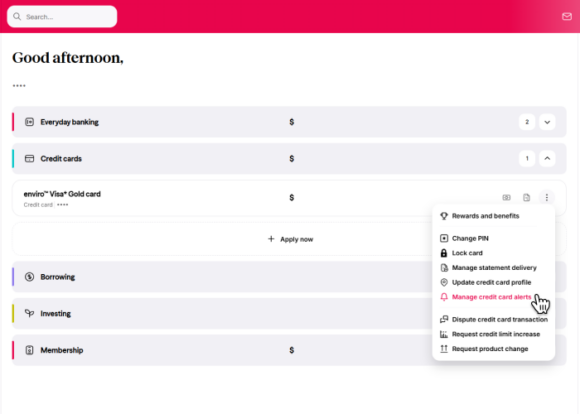
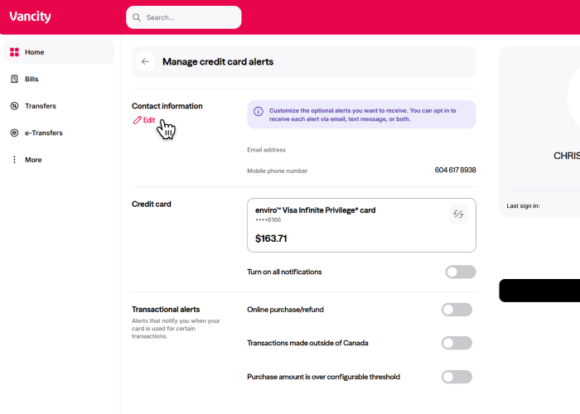
Log in to Online Banking. Then, click the Credit cards tab and click the stacked three-dotted icon for the corresponding credit card you wish to receive alerts for. Then, click Manage credit card alerts.
|
|
Step 2:
Customize your Visa alert settings and review the fields:
Note: standard text messages charges may apply. When complete, click the Save changes button. |
 |
Step 3:
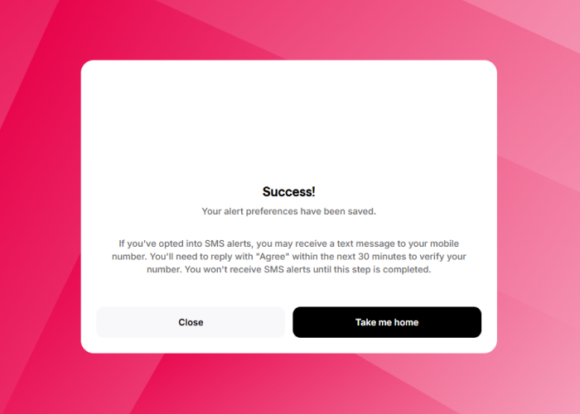
Your alert customization is complete. Note: If you’ve opted into SMS alerts, you may receive a text message to your mobile number. You’ll need to reply with “Agree” within the next 30 minutes to verify your number. You won’t receive SMS alerts until this step is completed. |