How do I enroll in Multi-Factor Authentication (MFA)?
The first time you log in to Online Banking, follow these steps to enroll in Multi-Factor Authentication.
You’ll have a choice of three different ways to receive one-time passcodes when prompted.
Choosing to receive a code by text message (SMS)
![]() |
Step 1:
Enter your MEMBER CARD number and select ‘Next’. Toggle the ‘Remember card number’ option if you want to save this card number for next time. |
![]() |
Step 2:
Enter your Password and select ‘Login’. |
![]() |
Step 3:
Select ‘Set up MFA’ to proceed with enabling multi-factor authentication. |
![]() |
Step 4:
Select ‘Text message (SMS)’. |
![]() |
Step 5:
Enter your phone number and select ‘Send Code’. |
![]() |
Step 6:
You’ll receive the one-time code as a text message (SMS). Please note that this code will not be coming from a Vancity number. Enter the code and select ‘Verify’. |
![]() |
Step 7:
Once ‘Text Message (SMS)’ is successfully set up, select ‘Continue’. |
Enrolling with an authentication app
Read this article to manually set up your authenticator app without using a QR code.
![]() |
Step 1:
Enter your MEMBER CARD number and select ‘Next’. Toggle the ‘Remember card number’ option if you want to save this card number for next time. |
![]() |
Step 2:
Enter your Password and select ‘Login’. |
![]() |
Step 3:
Select ‘Set up MFA’ to proceed with enabling multi-factor authentication. |
![]() |
Step 4:
Select ‘Authenticator App ’. |
![]() |
Step 5:
Follow the on-screen instructions and scan the QR Code. |
![]() |
Step 6:
You’ll see the one-time code displayed in the Authenticator app. |
![]() |
Step 7:
Enter the one-time code and select ‘Verify’. |
![]() |
Step 8:
Once the Authenticator App is successfully set up, select ‘Continue’. |
Choosing to receive a code by a phone call (landline or cellular)
![]() |
Step 1:
Enter your MEMBER CARD number and select ‘Next’. Toggle the ‘Remember card number’ option if you want to save this card number for next time. |
![]() |
Step 2:
Enter your Password and select ‘Login’. |
![]() |
Step 3:
Select ‘Set up MFA’ to proceed with enabling multi-factor authentication. |
![]() |
Step 4:
Select ‘Voice Call’. |
![]() |
Step 5:
Enter your phone number and select ‘Call’. Note: If you choose to receive your MFA code via a phone call, spam filters or call-blocking settings on your phone may prevent the call from coming through. Troubleshooting tip: If you don’t receive the MFA call when expected, check your phone’s spam or call-blocking settings to ensure the call isn’t being automatically filtered or blocked. |
![]() |
Step 6:
You’ll receive an automated phone call that will speak the one-time code. Note: This call will not be coming from a Vancity number. Enter the 6-digit code and select ‘Verify’. |
![]() |
Step 7:
Once Voice Call Authentication is successfully set up, select ‘Continue’. |
Accessing your MFA when travelling
Please note that if you are traveling and not taking any of your devices with you, you will only be able to access your banking by calling Member Services. If you are planning on accessing your Vancity account while travelling, please make sure that you have access to receive your MFA code. Accessing phone texts or calls are often challenging when travelling, so we recommended to set up the Authenticator app in advance of your trip. You can receive the MFA code on any device that has your authenticator app (i.e., phone, tablet, laptop, etc.). You can find a step-by-step guide on
this page.
If you are already abroad or don’t have access to your phone, you will not be able to change the way you receive your MFA code. Please call Member Services so we may assist you in accessing your banking:
Monday to Saturday: 8 am to 8 pm, Sunday: 10 am to 5:30 pm
Vancouver: 604-877-7000
Victoria: 250-519-7000
Toll-free: +1-888-826-2489
International: +IAC-800-826-2489-0
(IAC = International Access Code, varies by country)
Choosing to receive a code by text message (SMS)
![]() |
Step 1:
Enter your MEMBER CARD number and select ‘Next’. Toggle the ‘Remember card number’ option if you want to save this card number for next time. |
![]() |
Step 2:
Enter your Password and select ‘Login’. |
![]() |
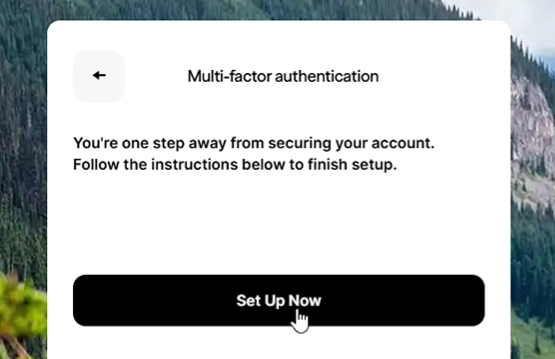
Step 3:
Select ‘Set Up Now’ to proceed with enabling multi-factor authentication. |
![]() |
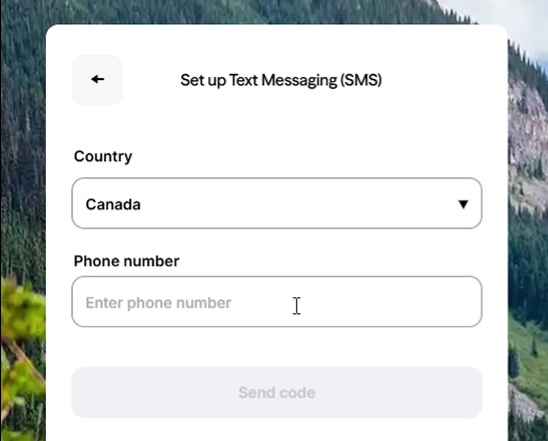
Step 4:
Select ‘Text message (SMS)’ and enter your phone number. Click “Send code”. |
![]() |
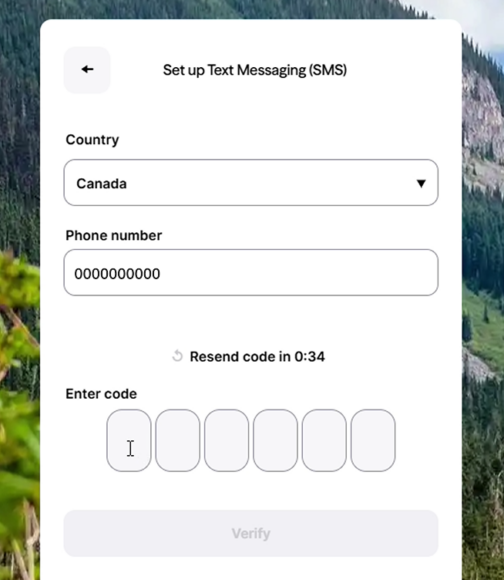
Step 5:
Please enter the code you received and click “Verify”. |
![]() |
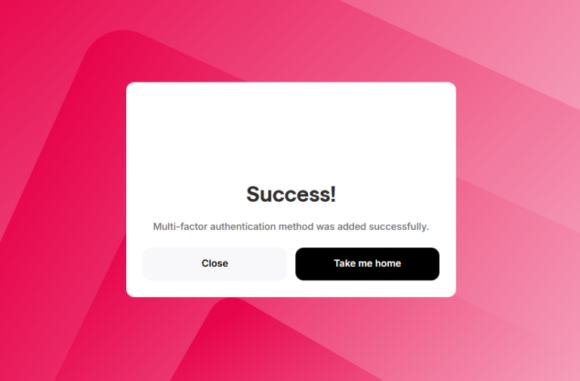
Step 7:
Once ‘Text Message (SMS)’ is successfully set up, select ‘Continue’. |
Enrolling with an authentication app
Read this article to manually set up your authenticator app without using a QR code.
![]() |
Step 1:
Enter your MEMBER CARD number and select ‘Next’. Toggle the ‘Remember card number’ option if you want to save this card number for next time. |
![]() |
Step 2:
Enter your Password and select ‘Login’. |
![]() |
Step 3:
Select ‘Set up MFA’ to proceed with enabling multi-factor authentication. |
![]() |
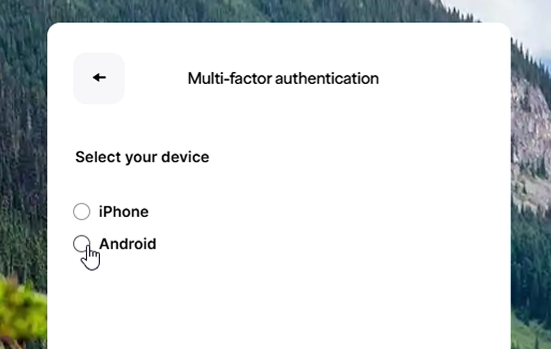
Step 4:
Select ‘Authenticator App ’ and choose your device. |
![]() |
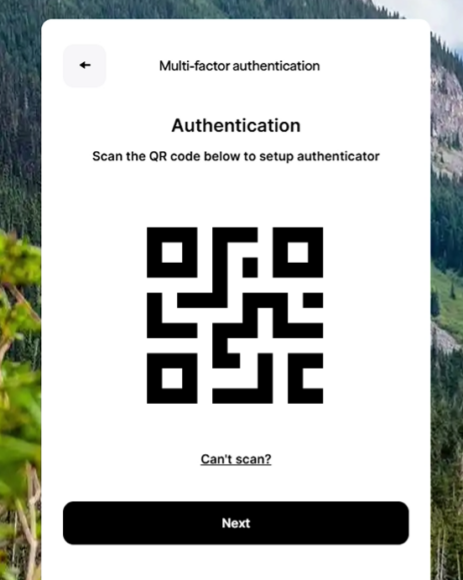
Step 5:
Follow the on-screen instructions and scan the QR Code. |
![]() |
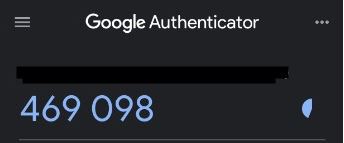
Step 6:
You’ll see the one-time code displayed in the Authenticator app. |
![]() |
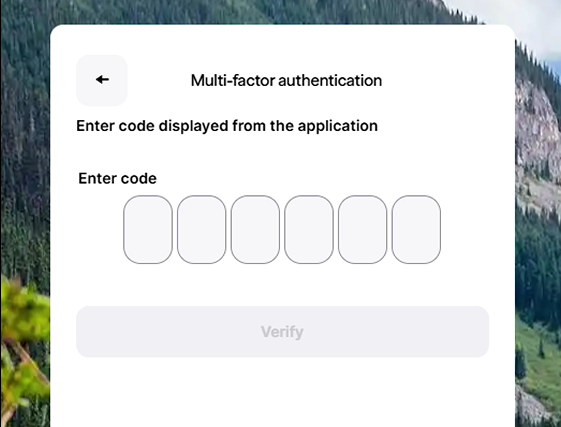
Step 7:
Enter the one-time code and select ‘Verify’. |
![]() |
Step 8:
Once the Authenticator App is successfully set up, select ‘Continue’. |
Choosing to receive a code by a phone call (landline or cellular)
![]() |
Step 1:
Enter your MEMBER CARD number and select ‘Next’. Toggle the ‘Remember card number’ option if you want to save this card number for next time. |
![]() |
Step 2:
Enter your Password and select ‘Login’. |
![]() |
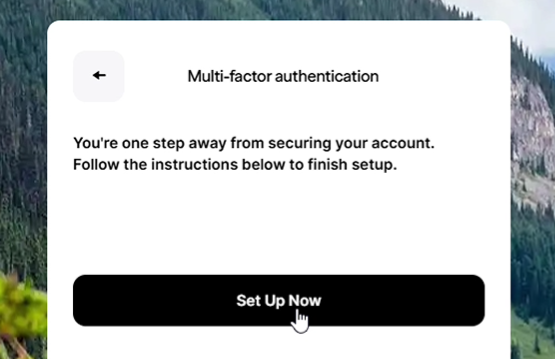
Step 3:
Select ‘Set up MFA’ to proceed with enabling multi-factor authentication. |
![]() |
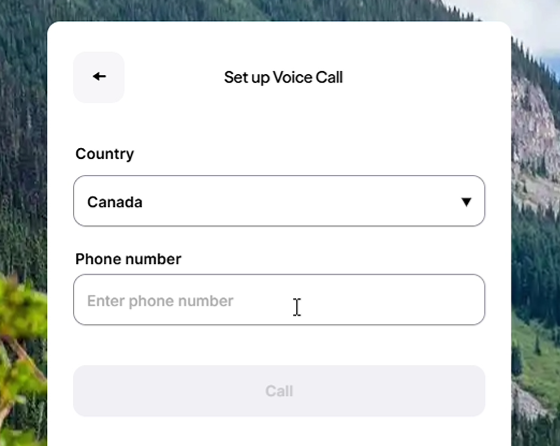
Step 4:
Select ‘Voice Call’. Enter your phone number and select ‘Call’. Note: If you choose to receive your MFA code via a phone call, spam filters or call-blocking settings on your phone may prevent the call from coming through. Troubleshooting tip: If you don’t receive the MFA call when expected, check your phone’s spam or call-blocking settings to ensure the call isn’t being automatically filtered or blocked. |
![]() |
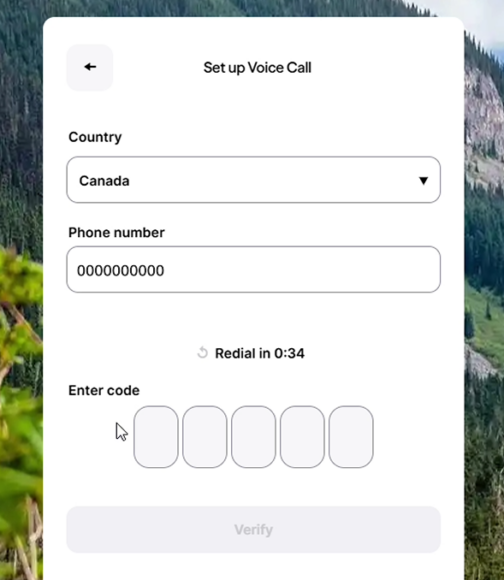
Step 5:
You’ll receive an automated phone call that will speak the one-time code. Note: This call will not be coming from a Vancity number. Enter the 6-digit code and select ‘Verify’. |
![]() |
Step 7:
Once Voice Call Authentication is successfully set up, select ‘Take me home’ or ‘Close‘. |
Accessing your MFA when travelling
Please note that if you are traveling and not taking any of your devices with you, you will only be able to access your banking by calling Member Services. If you are planning on accessing your Vancity account while travelling, please make sure that you have access to receive your MFA code. Accessing phone texts or calls are often challenging when travelling, so we recommended to set up the Authenticator app in advance of your trip. You can receive the MFA code on any device that has your authenticator app (i.e., phone, tablet, laptop, etc.). You can find a step-by-step guide on this page.
If you are already abroad or don’t have access to your phone, you will not be able to change the way you receive your MFA code. Please call Member Services so we may assist you in accessing your banking:
Monday to Saturday: 8 am to 8 pm, Sunday: 10 am to 5:30 pm
Vancouver: 604-877-7000
Victoria: 250-519-7000
Toll-free: +1-888-826-2489
International: +IAC-800-826-2489-0
(IAC = International Access Code, varies by country)