
e-Transfer Resource Hub
Welcome to the Interac e-Transfer® Resource Hub — your step-by-step guide to sending, receiving, and managing e-Transfers through Vancity Online and Mobile Banking. Here, you’ll learn everything you need to know, from setting up your profile and adding recipients, to requesting money, using Autodeposit, and troubleshooting common issues. This guide will help you get started quickly and make the most of this convenient and secure way to move money.
Need extra help? Scroll to the “Still Need Help?” section at the bottom for contact options.
Sending Money
An Interac e-Transfer lets you securely send money through online banking to anyone in Canada who has an online banking account and an email address or mobile phone number.
Steps to follow
 |
Step 1:
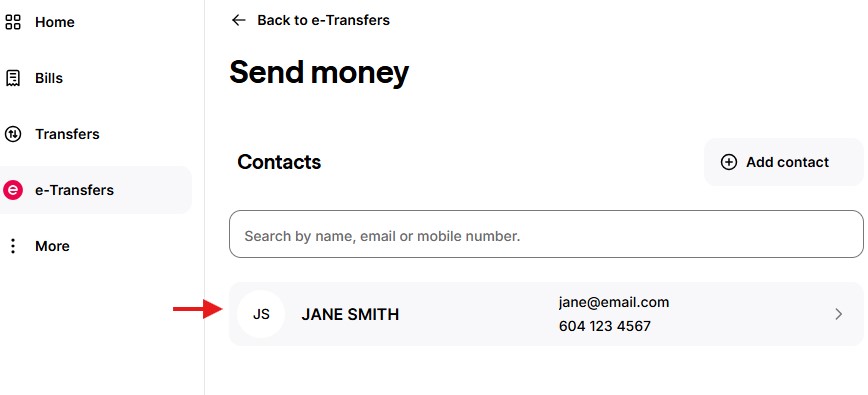
Log in and go to e-Transfers in the left menu. Step 2: Select Send money. |
 |
Step 3:
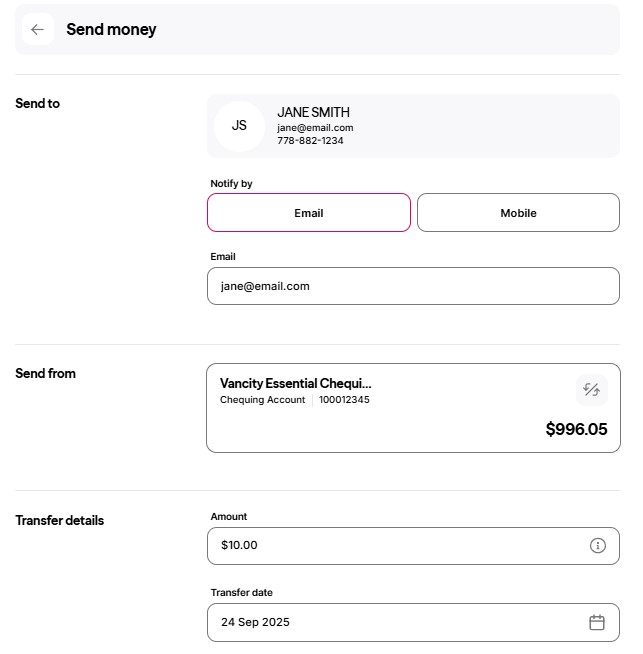
Click on the contact you want to send money to. |
  |
Step 4:
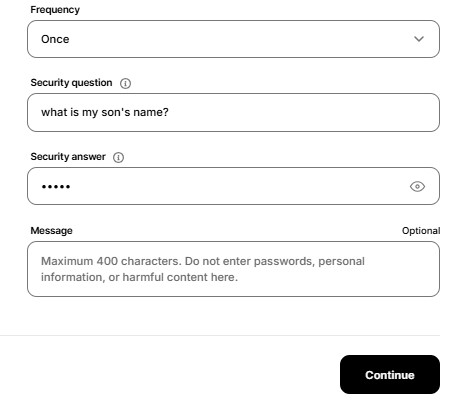
Please enter:
You can change your “Send from” account by clicking on the arrows and even set a default account to send from in the future. Click Continue. |
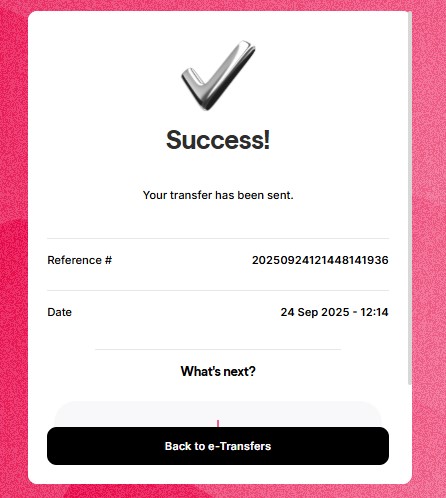 |
You’re done!
Note: Under ‘What’s next?’, you can choose to Save to favourite transactions. On the e-Transfers page, you will see your favourites to easily replicate this transaction. |
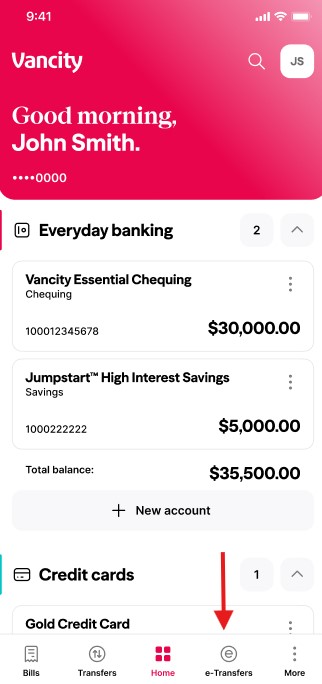 |
Step 1:
Open the app and select the e-Transfers at the bottom bar on the home screen. |
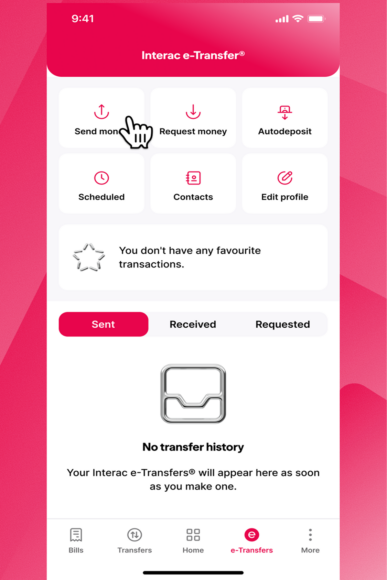 |
Step 2:
Select Send Money. |
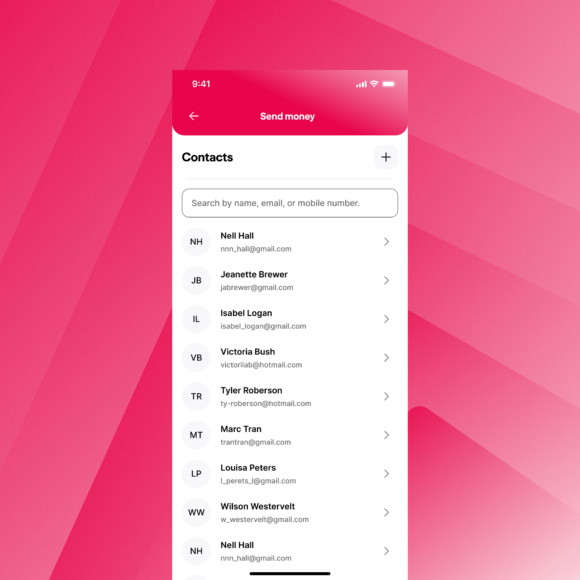 |
Step 3:
Tap on the contact you want to send money to. |
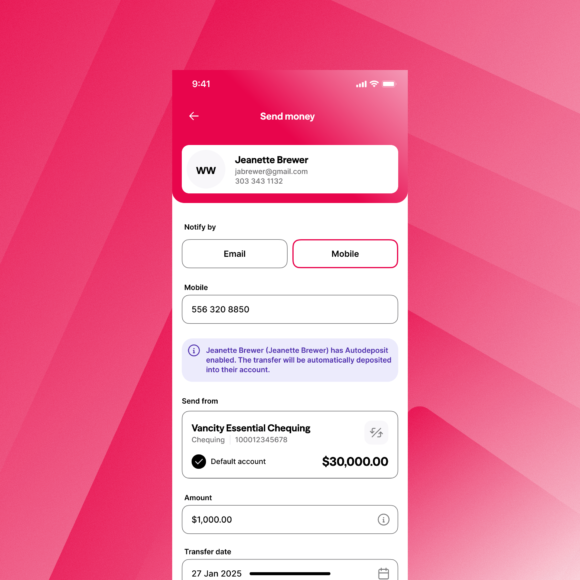 |
Step 4:
Choose the notification method for the contact and enter the required details, whether email or mobile.
You can change your “Send from” account by tapping on the Account field. You can also set a default account to send from in the future.
Enter the following details:
Click on Continue. |
 |
Step 5:
Review the details. If all is correct, proceed to transfer. |
 |
Step 6:
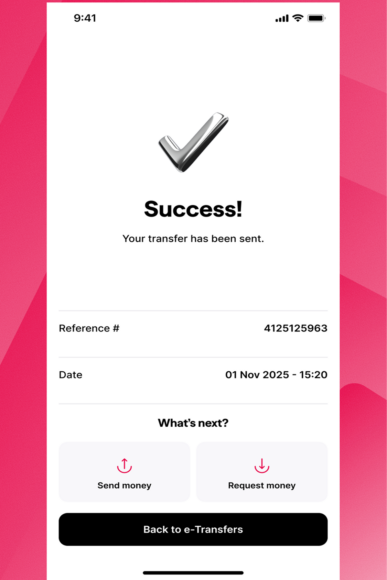
A Success message will indicate that your e-Transfer was sent. |
If you’re having trouble sending an Interac e-Transfer, check the following:
- Transaction limits: Verify your transfer, daily, 7-day, and 30-day limits (personal vs. business).
- Recipient setup: Has the recipient already been added to your recipient list?
- New card: If you received a new card with a new number, you’ll need to set up your recipients again before sending an Interac e-Transfer.
Note: Interac e-Transfers cannot be sent internationally. There are also limits to how much money can be sent or received. See the Limits & Fees section below to learn more.
Follow these steps to cancel any sent e-Transfers.
There are two cases where you cannot cancel an e-Transfer:
- A Send Money transaction to a member who has set up Autodeposit while the e-Transfer is still pending.
- A Request Money transaction that is pending fulfillment and deposit.
 |
Step 1:
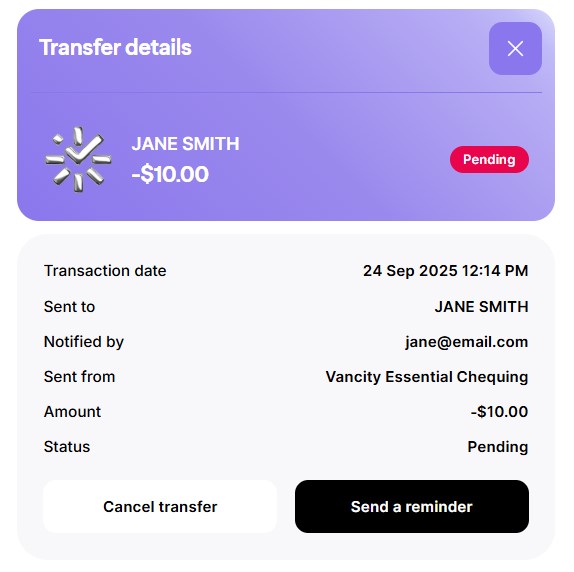
Log in and go to e-Transfers in the left menu. Step 2: From Transfer history, select the Pending e-Transfer. |
 |
Step 3:
On the right-hand side of the page, you will see Transfer details. Select ‘Cancel transfer’. |
 |
Step 4:
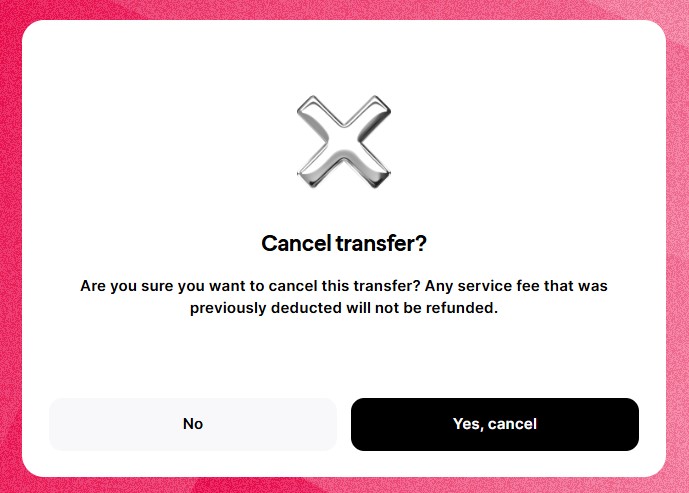
Click ‘Yes, cancel’. Then, you will see a success screen and you’re done. |
|
Step 1:
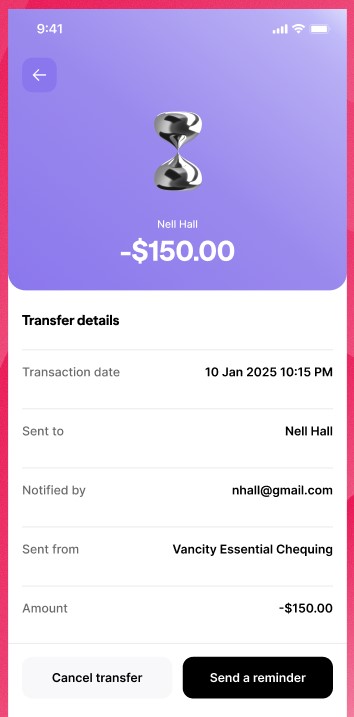
Open the app and select e-Transfers at the bottom bar on the home screen. Step 2: Under Sent, click on the e-Transfer you want to cancel. |
 |
Step 3:
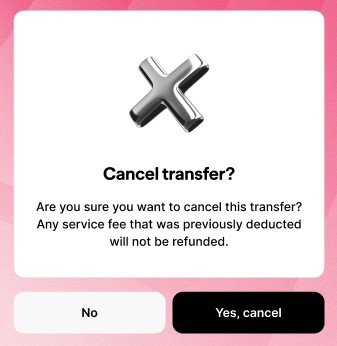
Tap ‘Cancel transfer’. |
 |
Step 4:
Tap ‘Yes, cancel’. Then you’ll see a success screen. |
To view the status of an e-Transfer you sent, simply view the Pending e-Transfer page. There, you can see whether your e-Transfer has been received and deposited.
- If a recipient hasn’t accepted your e-Transfer, you can resend the notice by clicking Resend Notice next to the transfer status on the Pending Interac e-Transfer page.
- If the transfer isn’t picked up within 30 days of being sent, it will expire, and a notification will be sent to you.
- You then have 30 days to cancel the transaction to reclaim your funds (minus the service charge) by clicking Cancel next to the transfer status.
- If you do not cancel within that time, Interac e-Transfer will automatically cancel the transaction, and your funds (minus the initial service charge) will be returned within seven days.
- Check recipient information: Ensure their email address and/or phone number is correct. If you only have one, try adding both.
- Verify in online banking:
- Log in to your online banking account.
- Click e-Transfers in the left-hand menu.
- Select Contacts
- Find the recipient and click Update. Confirm their information is correct.
- Resend the e-Transfer:
- Go to the send e-Transfer page.
- You’ll need to cancel and re-send.
Note: Interac e-Transfers typically take 30 minutes or less when both sender and recipient have a good network connection. Large transfer amounts may take longer to arrive.
If the recipient cannot answer the security question, you as the sender need to set a new question and answer, then resend the e-Transfer:
- Log in to your online banking account.
- Click e-Transfer Money in the left-hand menu.
- Select Contacts.
- Select the Contact
- Change the security question and answer.
- Click Update.
- Return to the Pending e-Transfer page and delete the e-Transfer.
- Click Send e-Transfer next to the e-Transfer.
A new notification with the updated security question and answer will be sent to the recipient.
- Ensure Autodeposit is set up for the email address or phone number used to send the e-Transfer.
- If it is set up correctly, the recipient should check with their financial institution to determine why Autodeposit did not process the transfer.
If you entered incorrect recipient information, you will need to cancel the e-Transfer.
Note:
- You can only cancel an e-Transfer if the recipient has not yet accepted it.
- If the recipient has Autodeposit or you have received an email confirmation that the transfer was accepted, cancellation is not possible.
- Always double-check recipient information before sending an Interac e-Transfer. During the sending process, you will be notified if your recipient has Autodeposit enabled.
One reason some business and retail members may have trouble sending or receiving Interac e-Transfers is the use of special characters in the recipient name or memo field. To avoid issues, use a proper name in the Recipient field (for example, jdoe) and avoid special characters in the memo or narrative. The only acceptable characters are A–Z, a–z, 0–9, +, -, ,, ., /, :, ?; any other characters may cause the e-Transfer to fail.
Yes! Members are able to schedule e-Transfers in advance, as well as reoccurring.
If an e-Transfer has failed or expired, the funds have never left your account, so no action is required.
If you need to cancel an e-Transfer, follow the steps outlined on this page to cancel any sent e-Transfers.
There are two cases where you cannot cancel an e-Transfer:
- A Send Money transaction to a member who has set up Autodeposit while the e-Transfer is still pending.
- A Request Money transaction that is pending fulfillment and deposit.
Receiving Money
To receive an Interac e-Transfer, you need to have set up your profile through Online Banking—see the Profiles & Contacts section below to learn more. If you haven’t set up Autodeposit, you can deposit the funds by following these steps.
Note: There are limits to how much money can be sent or received through Interac e-Transfer. See the Limits & Fees section below to learn more.
Once you’ve received an Interac notification:
 |
Step 1: Open the Interac e-Transfer email or text notification.
Step 2: Click Deposit your Money. |
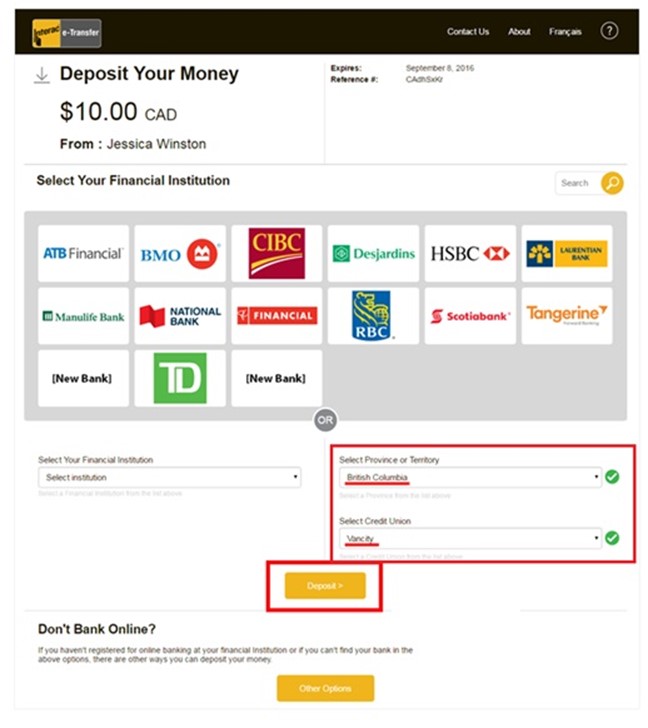 |
Step 3: Select British Columbia and Vancity from the dropdown menus. Note: “Vancity Community Investment Bank” is not the same as Vancity—make sure you select Vancity. Click Deposit. |
 |
Step 4: You will be asked to log into Online Banking.
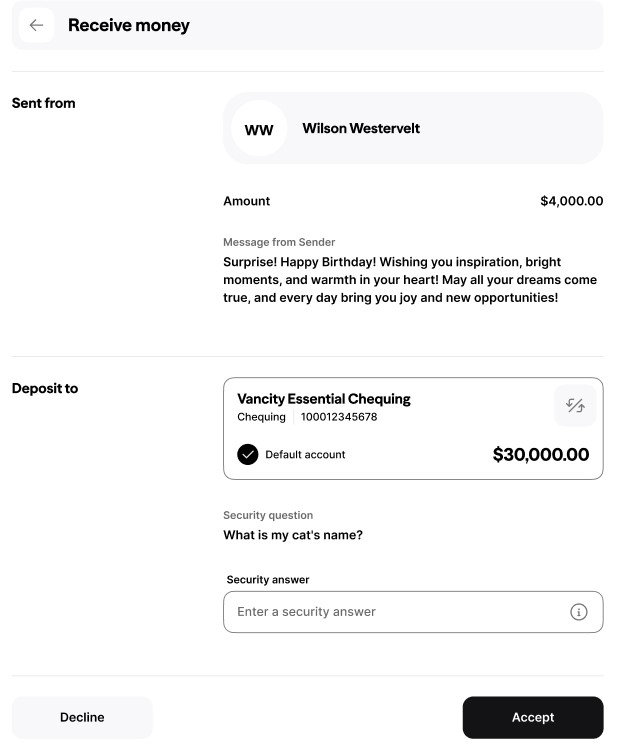
Step 5: Select the account you want to deposit into. Step 6: Answer the sender’s Security Question and click Accept. |
 |
That’s it. You’re done! |
Once you’ve received an INTERAC® notification:
| Step 1: Open the Interac e-Transfer email or text notification. | |
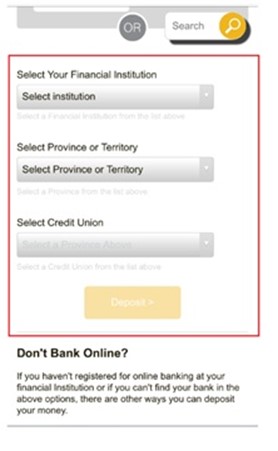 |
Step 2: Select British Columbia and Vancity from the dropdown menus. Note: “Vancity Community Investment Bank” is not the same as Vancity—make sure you select Vancity. Click Deposit. |
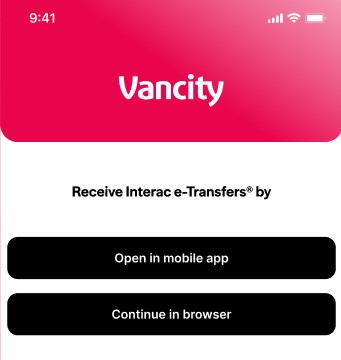 |
Step 3: Select ‘Continue in browser’. |
|
Step 4: You will be asked to log into Online Banking.
Step 5: Select the account you want to deposit into. Step 6: Answer the sender’s Security Question and click Accept. |
|
That’s it. You’re done! |
- Open your Vancity Mobile Banking
- Select the Personal Account Number you want to log in with.
- Review the Fulfill Request and tap “Accept” to acknowledge and receive the amount.
- Review the details and tap “Confirm.”
- When the confirmation receipt appears on your screen, tap “Done.”
When you send an Interac e-Transfer, the recipient receives an email or text notification with a link to the Deposit your Transfer page on the Interac site. From there, depending on their financial institution, the recipient is guided through a simple, user-friendly process to quickly deposit the funds.
You’ll receive an email notification each time funds are deposited through Autodeposit. The email will confirm the deposit and include any details associated with the transfer.
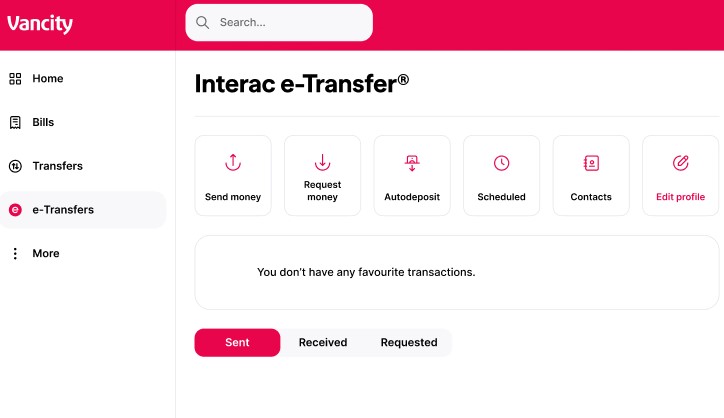 |
Step 1:
In the e-Transfers tab, select Edit profile. |
 |
Step 2:
Under Notify by select Email. |
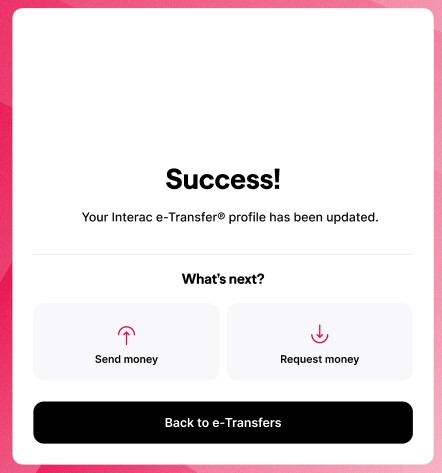 |
That’s it. You’re done! |
- Ensure the email address or phone number registered for Autodeposit matches the ones the sender used.
- If you are using a new Personal Account Number (PAN) or debit card, you will need to set up Autodeposit again.
- Select your province, then choose Vancity from the list of credit unions.
- Important: Do not select VCIB by mistake. If you are prompted for a username, it means VCIB was selected. In that case, restart the process and make sure to select Vancity.
Requesting Money
The Request Money feature allows you to securely request funds through online or mobile banking. You can send a request to anyone in Canada with an email address or mobile phone number and a bank account.
- Once your request is fulfilled, the money is deposited directly into your account, and you’ll be notified.
- A service charge is applied to the sender’s account when the request is accepted and funds are deposited. See our Service Charge Bulletin for details.
- Requests stay active for 30 days.
- If you haven’t already created an Interac e-Transfer profile, you’ll need to set that up first.
- If you experience issues receiving a request on mobile web or in the app, try logging in from a desktop computer or using the full website on your mobile browser.
Steps to request money (Website):
- Log into Online Banking and navigate to the e-Transfers tab in the left-hand menu.
- Select Request money.
- Choose the contact to request funds from. You can select a pre-existing contact or add a new one.
- Enter the amount you are requesting and select the account for deposit. Optionally, add a personalized message, invoice number, or due date (useful for business members). Check the box confirming you have notified the person and have their permission.
- Once the recipient fulfills your request, funds are deposited into your account, and a service fee is applied.
Steps to request money (Mobile app):
- Open the app and select e-Transfers at the bottom bar on the home screen.
- Log in with your Personal Account Number (PAN) and password.
- Press Request money from the top menu.
- Choose the contact to request funds from. You can select a pre-existing contact or add a new one.
- Press the From field to select the person to request funds from (pre-existing or new recipient).
- Enter the amount you are requesting and select the account for deposit. Optionally, add a personalized message, invoice number, or due date (useful for business members). Check the box confirming you have notified the person and have their permission.
- Once the recipient fulfills your request, funds are deposited into your account, and a service fee is applied.
Profiles & Contacts
The first time you send an Interac e-Transfer, you’ll be prompted to set up an e-Transfer profile. To do this, log in to your online banking account and follow the steps below.
|
Step 1:
In the e-Transfers tab, select Edit profile. |
|
Step 2:
Enter your information and press ‘Continue’. Please note:
|
|
That’s it. You’re done! |
|
Step 1:
Open the app and select e-Transfers at the bottom bar on the home screen. |
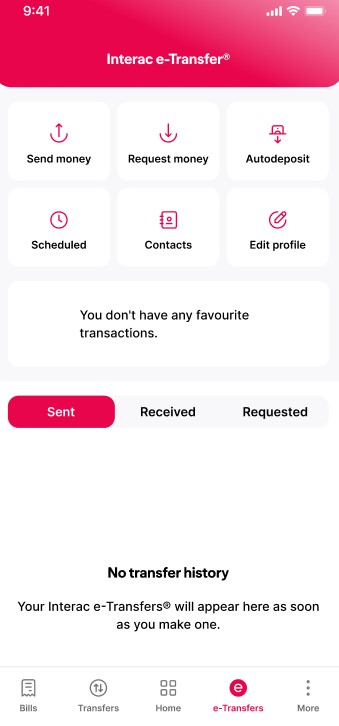 |
Step 2:
Select Edit profile. |
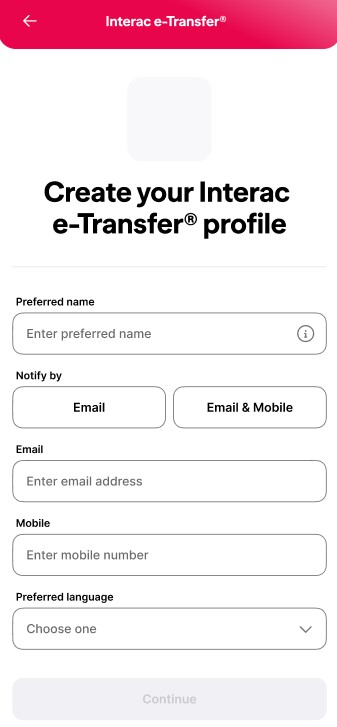 |
Step 3: Enter your information and press ‘Continue’.Please note:
|
To send or request money via Interac e-Transfer, you must set up the recipient. This is only required for requests you initiate and is not needed if you are expecting to receive a request. If it’s your first time sending or requesting money from someone, you’ll need to add them as a new recipient. You can also edit or delete recipients from the Add/Delete Recipient page.
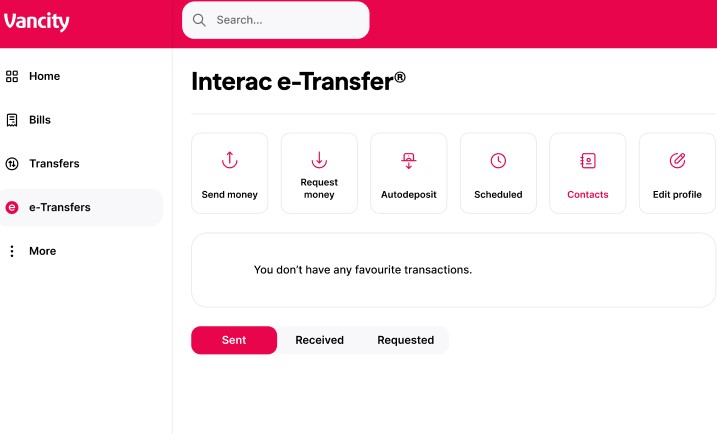 |
Step 1:
Log in and go to the e-Transfers tab. Step 2: Select ‘Contacts’. Step 3: If you want to add a contact, click ‘Add Contact’. Otherwise to modify a contact, simply select the Contact. |
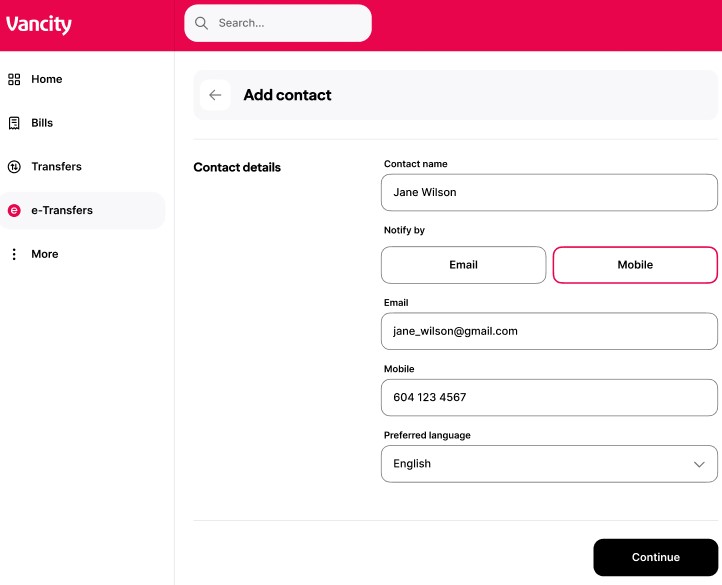 |
Step 4:
Enter/update the information and press ‘Continue’. That’s it! You will see a success message. |
Add a recipient to send a transfer
|
Step 1:
Open the app and select e-Transfers at the bottom bar on the home screen. Then, select ‘Contacts’. |
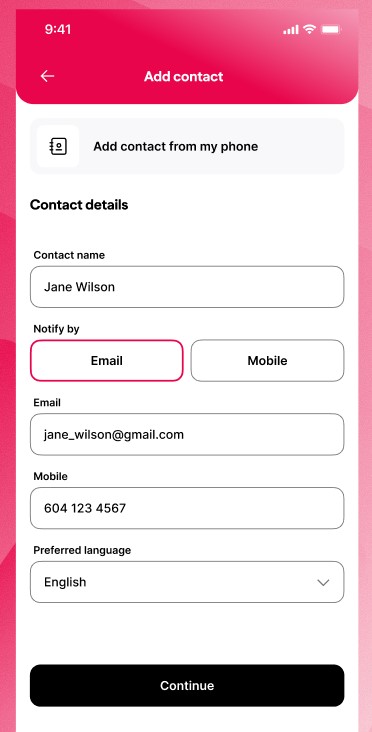 |
Step 2:
If you want to add a contact, tap ‘+’. Otherwise to modify a contact, simply select the Contact. Step 3: Enter/update the information and press ‘Continue’. That’s it! You will see a success message. |
Autodeposit
Autodeposit is a feature of the Interac e-Transfer service where you can register to have funds directly deposited into your bank account — no security question required.
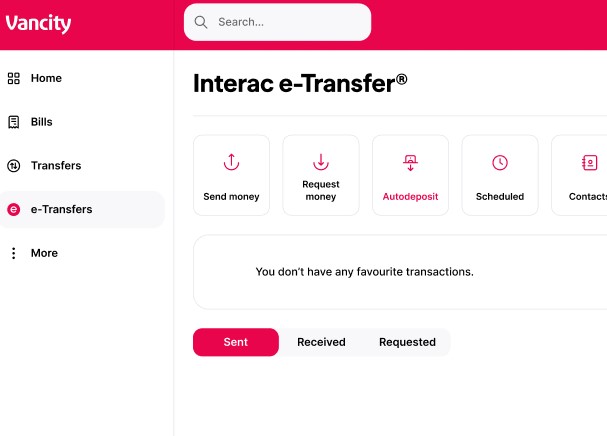 |
Step 1:
Log in to online banking and navigate to e-Transfers in the left-hand menu. Step 2: Select Autodeposit from the menu. |
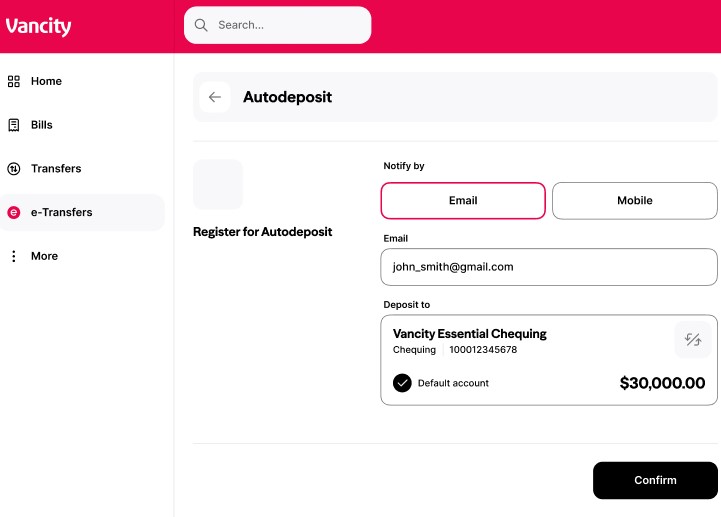 |
Step 3:
Enter your email address or mobile number and link it to your account. Any transfers sent to the registered email address or mobile number will be automatically deposited. You can register up to five different email addresses and link them to different Vancity accounts. |
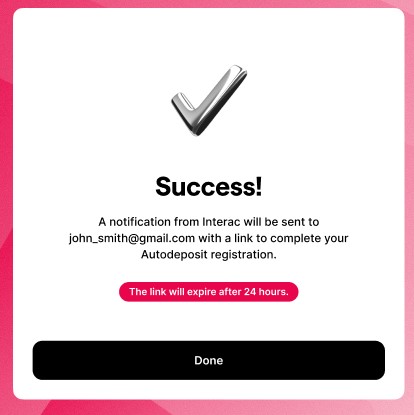 |
Step 4:
Check your email inbox or text messages for a confirmation message and complete your registration. |
|
Step 1:
Open the app and select e-Transfers at the bottom bar on the home screen. Then, select ‘Autodeposit’. |
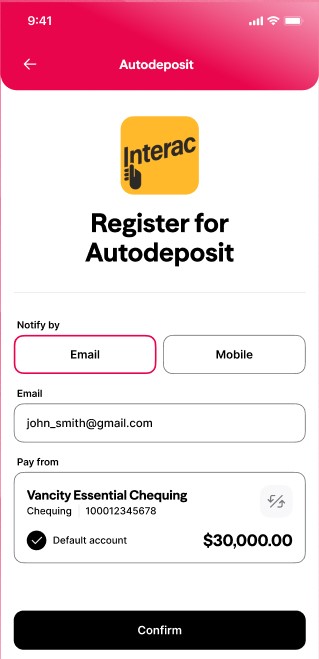 |
Step 2:
· Enter your email address or mobile number and link an account. · Any transfers sent to the registered email address or mobile number will be automatically deposited. You can register up to five different email addresses and link them to different Vancity accounts. · Check your email inbox or text messages for a confirmation message and complete your registration. Press ‘Confirm’ and you’ll see a success message! |
When you register for Autodeposit, the name you used to create your Interac e-Transfer® profile will be shown to anyone who sends you money. This ensures the sender can confirm they’re transferring funds to the right person.
Limits & Fees
Yes. Interac e-Transfers® have set limits for sending, receiving, and requesting funds. These are system-wide limits and cannot be adjusted for individual members.
Click the sections below to view limits for personal and business banking. If you are experiencing difficulty sending or depositing within these limits, please contact us.
Personal Banking
Sending e-transfers:
- No Minimum transfer amount
- Maximum per transfer: $6,000
- Daily rolling* limit: $10,000
- 7-day rolling cumulative limit: $10,000
- 30-day rolling cumulative limit: $20,000
- No-delay transfer limit: $250
- Daily rolling* no-delay transfer limit: $500
Receiving e-transfers:
- Maximum per transfer: $25,000
- Daily rolling* limit: N/A
- 7-day rolling cumulative limit: N/A
- 30-day rolling cumulative limit: N/A
Requesting e-transfers:
- Maximum per request: $6000
| *Rolling limits are calculated by the exact time a transfer is sent. For example, if the first transaction is sent at 11:30 a.m., the 24-hour rolling period ends at 11:29 a.m. the following day. |
Business Banking
Please visit our Business Interac e-Transfers page for business account limits.
Requesting money by Interac e-Transfer includes a fee. Please see the latest Personal and Business Service Charge Bulletin on vancity.com for details. The fee is withdrawn from your account when the recipient accepts the request and the transfer is deposited. If the request is not fulfilled, no fee is charged.
Sending an Interac e-Transfer includes a fee. Please see the latest Personal and Business Service Charge Bulletin on vancity.com for details.
- The fee is withdrawn at the time of the transfer.
- The fee is non-refundable. If you cancel or recall the transfer, or if the recipient does not accept it, the fee will not be returned. This is because Vancity incurs the cost at the time the transaction is initiated.
There is no fee to deposit an Interac e-Transfer into your Vancity account if it was sent by another person or party.
The following accounts include free Interac e-Transfer transactions:
- E Package Chequing
- Access Chequing (personal)
- Independent Business account
You can avoid Interac e-Transfer fees by sending funds directly to another Vancity member:
- Select Transfer to Another Member on the Transfer Money page.
- Enter your recipient’s Vancity relationship number and account name.
Learn more about how to transfer funds to another Vancity member.
History & Records
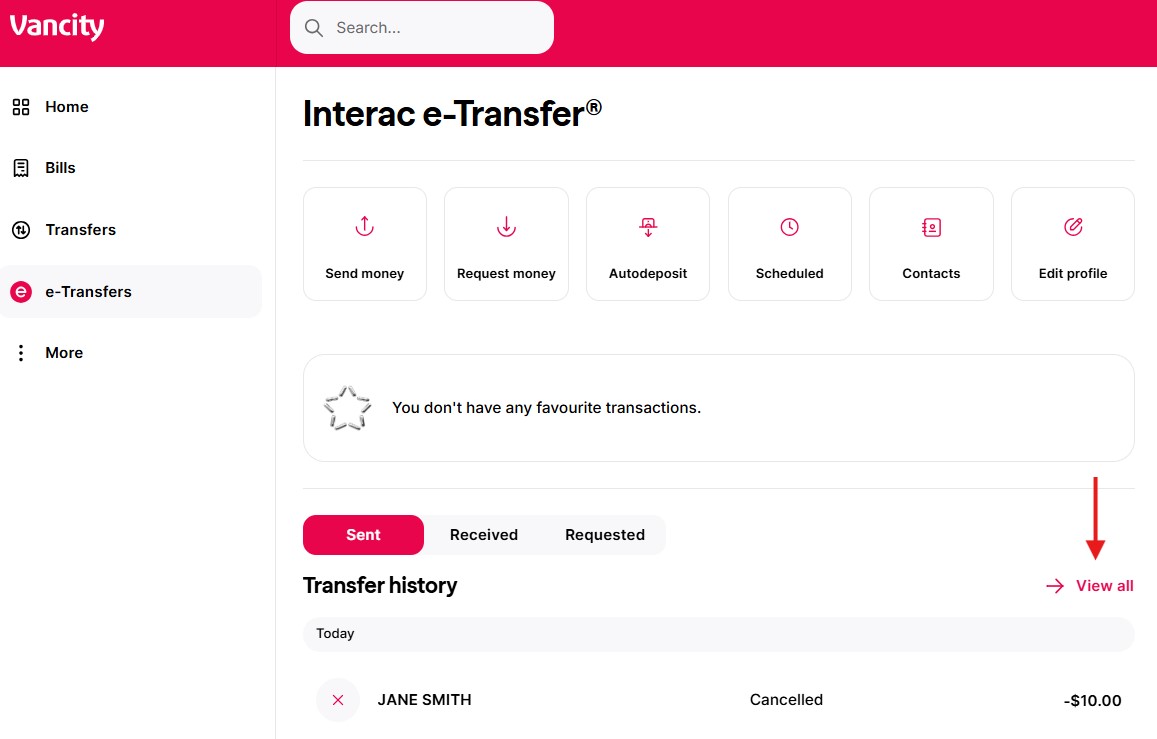 |
Step 1:
From the e-Transfer page in Online Banking, under Transfer history, select View all from the bottom of the page. |
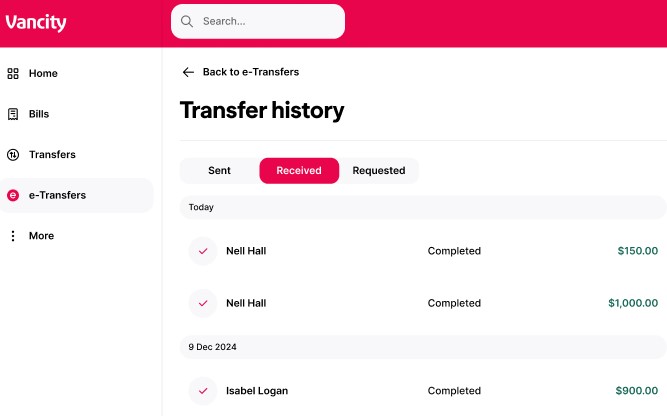 |
Step 2:
You will see all your Sent, Received, and Requested e-Transfers. |
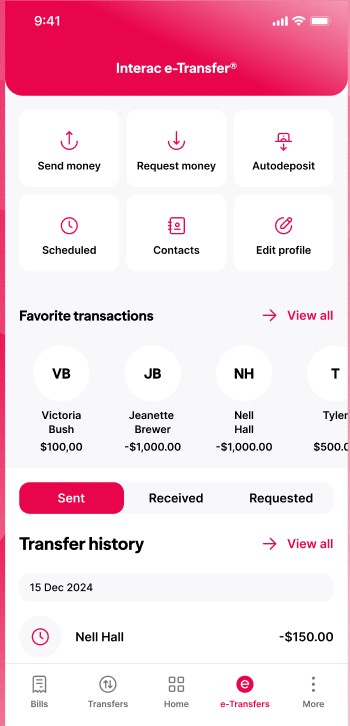 |
Step 1:
From the e-Transfer page in the app, under Transfer history, select View all from the bottom of the page. |
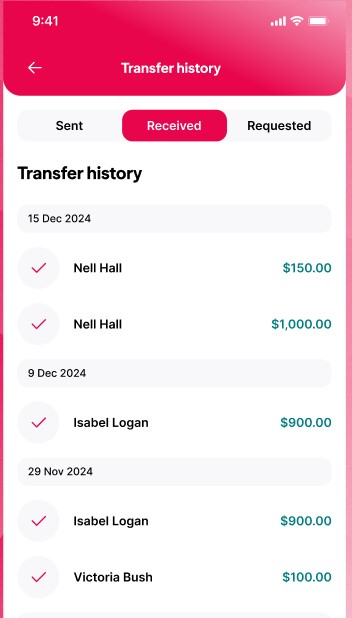 |
Step 2:
You will see all your Sent, Received, and Requested e-Transfers. |
Security
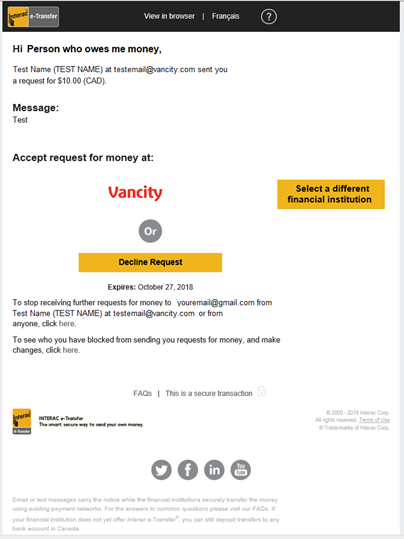
Only click on links in Interac notifications if they’re from senders you recognize and for requests you were expecting.
When using the Request Money feature, Interac includes the name of the individual or business in the notification. This can help you confirm whether the request is legitimate.
If you receive a request from someone you don’t know or weren’t expecting, report it as spam. You can do this by calling our Member Services Centre or emailing phishing@interac.ca.
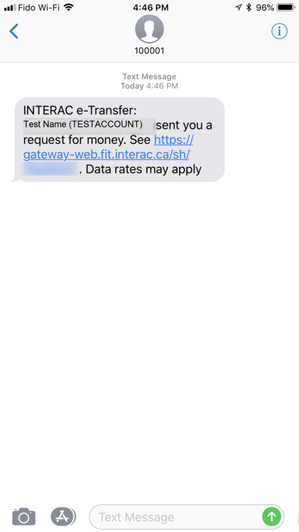
Interac notifications sent by text
- All legitimate Interac e-Transfer text notifications come from short code 100001.
- Standard text messaging charges may apply.
Examples of legitimate notifications
| Sample Request Money notification via email | Sample Request Money notification via text message |
| Sent from <notify@payments.interac.ca> | Sent from: 100001 |
 |
 |
Still Need Help?
If you’re having trouble logging in, here are the most common solutions:
- Forgot Password? Make sure you’ve set up Password Reset first.
- Enable Face / Touch ID in the app settings for easier login.
- Want to save your MEMBER CARD number? Use the “Add another account” button to save an additional MEMBER CARD.
If you don’t find what you’re looking for and still have questions:
- General inquiries: Call Card Services at 18006118472 or send a secure message.
- Login issues: Call 18888774543.
- Lost or stolen cards: Call 18779267744 (Canada/US).