Here’s how:
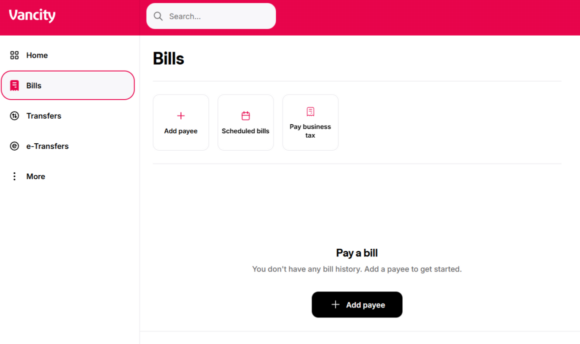
To add a payee:
| Step 1:
Log in to |
 |
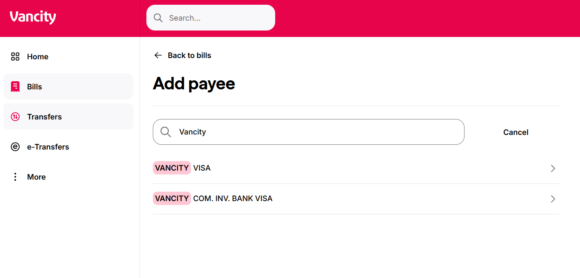
| Step 2:
Type the Payee Name in the search bar. Click on the |
 |
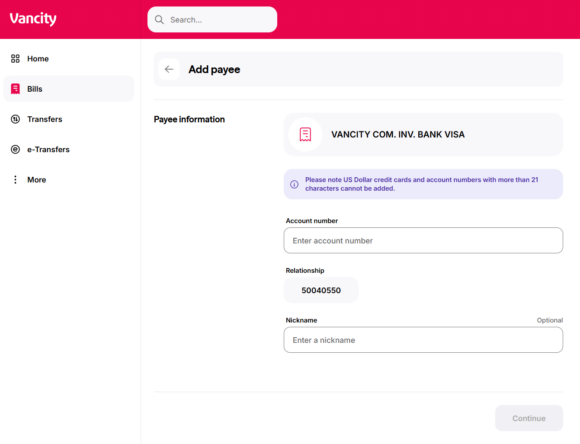
| Step 3:
Enter the following information:
Once completed, click the ‘Continue’ button. |
 |
To delete a payee:
| Step 1:
Log in to |
| Step 2:
From the left-hand menu, select Bills to open the Bills page. Then, select the |
| Step 3:
You’ll see a confirmation screen asking if you’d like to proceed with deleting this bill payee. |
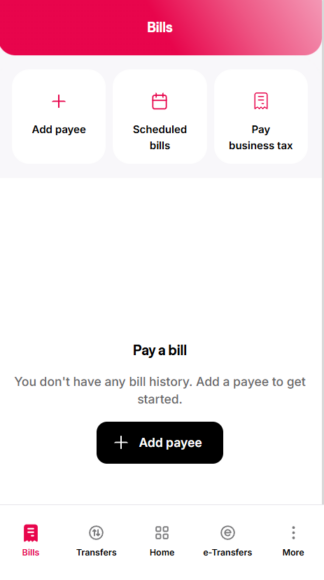
To add a payee:
| Step 1:
Log in to the Vancity Mobile App. Tap Bills from the bottom menu. On the Bills page, |
 |
| Step 2:
Type the Payee Name in the search bar and select the correct vendor from the list. |
 |
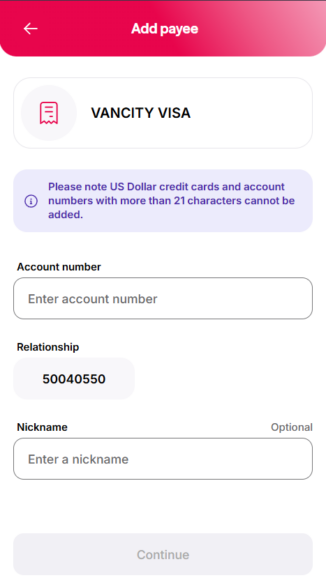
| Step 3:
Enter the following details:
When finished, tap Continue to save the payee. |
 |
To delete a payee:
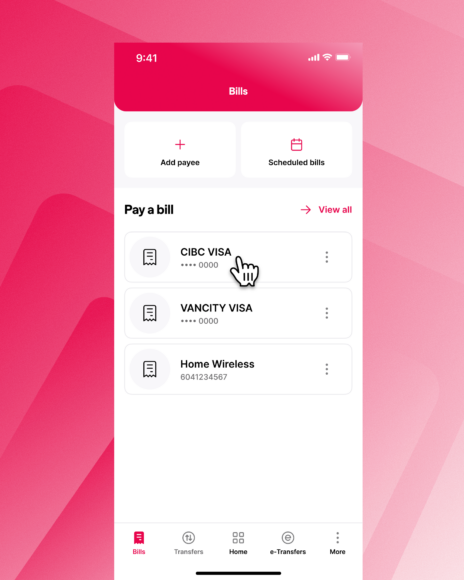
| Step 1:
Log in to the Vancity Mobile App. After logging in, tap the Bills button along the bottom |
 |
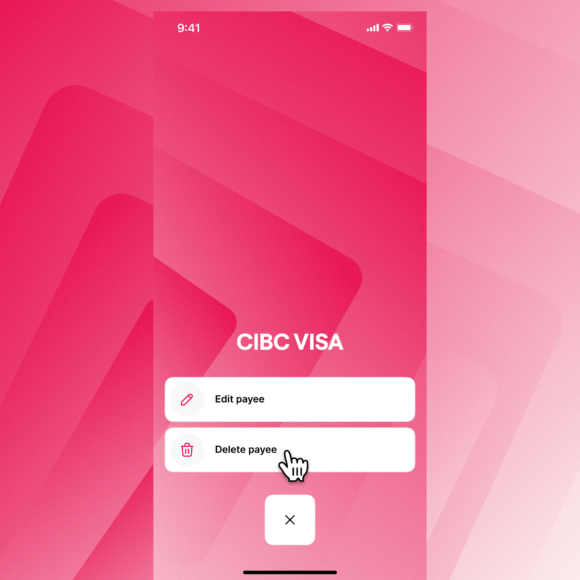
| Step 2:
Tap the ‘Delete payee’ button. |
 |
| Step 3:
You’ll see a confirmation screen asking if you’d like to proceed with deleting this bill payee. |
 |
Note, you cannot add or delete payees using a mobile device unless it’s the Vancity mobile app.