How do I change my online banking password?

Follow these steps to update your password after logging in to Online Banking.

Forgot your password?

  • If you have enrolled in Multi-Factor Authentication (MFA), you can set up a Password Recovery Question.
  • If you have not enrolled in MFA or set up a Password Recovery Question, please contact us for assistance in resetting your password.

Choose an option that works best for you:


Step 1:
Log in to Online Banking.

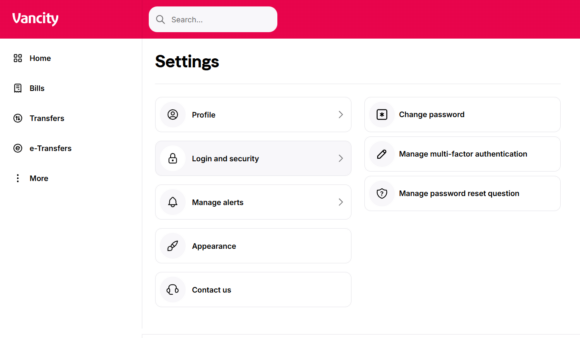
  1. Click the member icon in the top-right corner.
  2. Select ‘Login and security’, then click ‘Change password’.


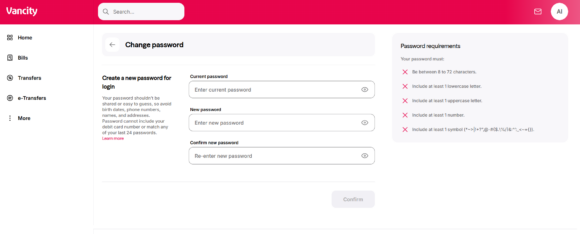
Step 2: Update your password.

  1. Enter your current password.
  2. Enter your new password.
  3. Confirm your new password.
  4. Click ‘Confirm’ to save your changes.

Step 1: Log in to the Vancity Mobile App.

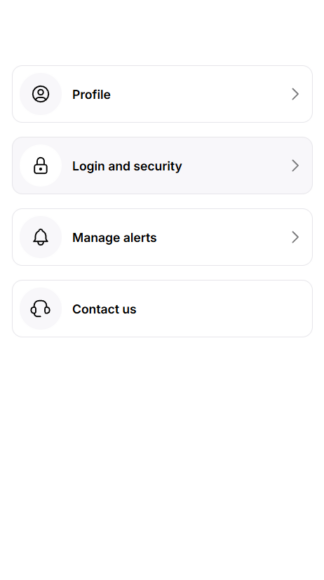
  1. Tap the member icon at the top of the screen.
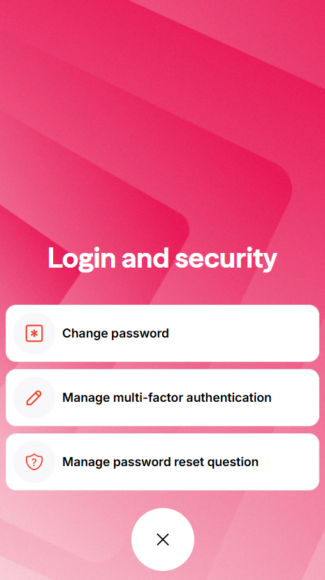
  2. Select ‘Login and security’.
Step 2: Change your password.

  1. Tap ‘Change password’.
  2. Enter your current password, then your new password.
  3. Tap ‘Confirm’ to save your changes.

Remember that your password:

  • Must be between 8 and 72 characters, include at least 1 lower case letter, 1 upper case letter, 1 number, and 1 symbol or space.
  • Must not include your card number, and not match any of your last 24 passwords.
  • Cannot be generated by a password management feature such as iCloud Keychain as it may not meet Vancity’s requirements.
  • Shouldn’t be shared with anyone else. It’s your responsibility to protect your passwords.

If you have forgotten your password, please
read this information.

  • Was this article helpful?
  • Yes   No