How do I add or delete a bill payee?

Here’s how:


To add a payee:

  • Click “Add Payee”
  • Enter Payee Name and click “Search”
  • Click “Vancity VISA”
  • Choose your relationship # that you want to pay your bills from and click “Submit”
  • If your status is completed, you’re done.

To delete a payee:

Step 1: log in to
online banking

  1. click “Pay Bills”
  2. click “My Payees”
  3. find the payee you want to delete and click “Delete”
Step 2: review the information and if everything is correct,

  • click “Confirm”
Step 3: check the receipt

  • if your status is completed, you’re done.

To add a payee:

Step 1: log in to the Vancity mobile app,

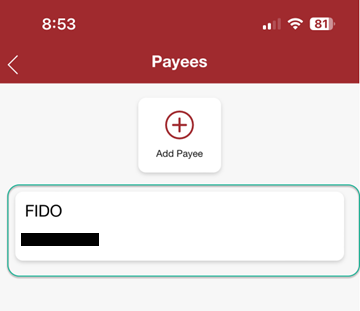
  • tap “Pay Bills”
Step 2: tap “Manage Payees”
Step 3: tap “ADD PAYEE”
Step 4: search your payee by (2 options):

  • tap “Search” or,
  • tap “Browse”
Step 5: search your payee by

  • type in at least 3 characters of the payee by name
  • search results will display and tap the payee
Step 6: if you have multiple Relationships,

  • select the one you want to pay the bills from
Step 7: type in your Account #.

  • Remember, this is not your Vancity Account #, but your account number with your vendor. You can locate this number from your bill payee statement (i.c. BC Hydro statement, bill)
Step 8: review and if everything is correct,

  • tap “CONFIRM”
Step 9:

  • look for “Add Payee: Completed” sign and you’re done

To delete a payee:

Step 1: log in to the Vancity mobile app

  • tap “Pay Bills”
Step 2: tap “Manage Payees”
Step 3:

  1. Tap the garbage icon
  2. A pop up will appear – click delete


To add a payee:

Step 1:

Log in to
Online Banking.
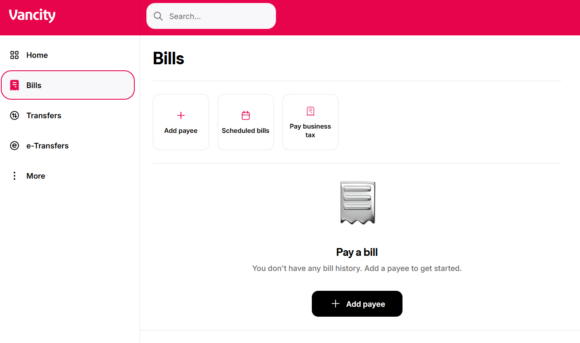
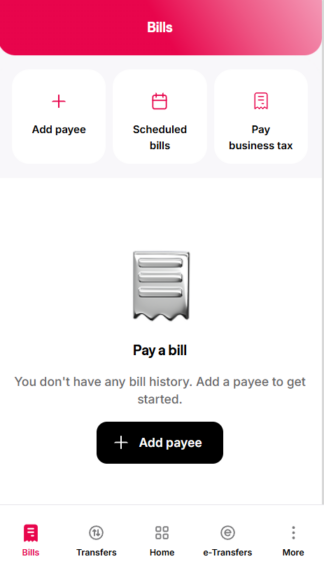
From the left-hand menu, select Bills. Then, on the Bills page, click the
‘Add payee’ button.

Step 2:

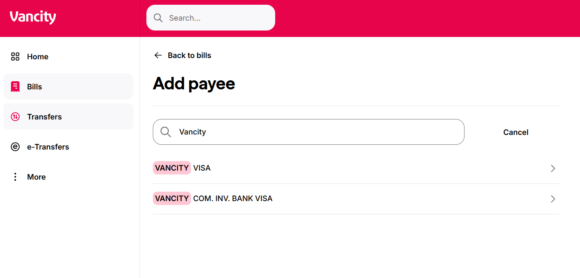
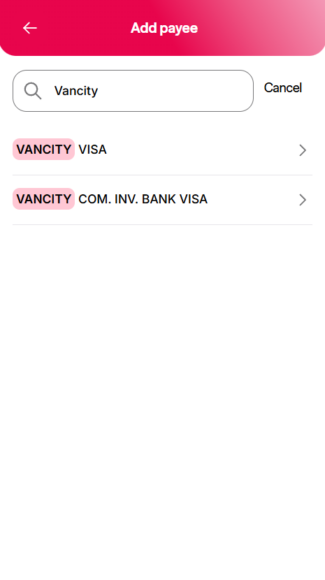
Type the Payee Name in the search bar. Click on the
Vendor you would like to add as a payee.

Step 3:

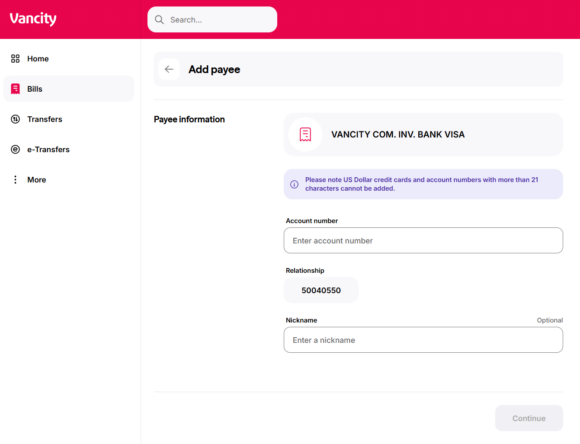
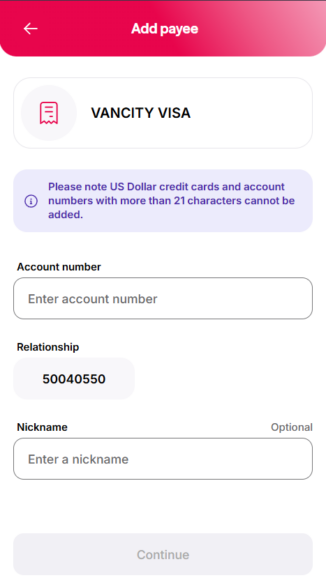
Enter the following information:

  • The complete vendor account number, which can be found on your bill statement.
    Note: This is not your Vancity account number. If you’re paying your enviro Visa,
    enter the complete enviro Visa account number found on the front or back of your card.
  • Select the Relationship number that you want to pay your bill from.
  • Add an optional Nickname for this bill vendor.

Once completed, click the ‘Continue’ button.

To delete a payee:

Step 1:

Log in to
Online Banking.

Step 2:

From the left-hand menu, select Bills to open the Bills page. Then, select the
trash can icon next to the bill payee you would like to delete.

Step 3:

You’ll see a confirmation screen asking if you’d like to proceed with deleting this bill payee.
To complete the deletion, click the ‘Confirm’ button.

To add a payee:

Step 1:

Log in to the Vancity Mobile App. Tap Bills from the bottom menu. On the Bills page,
tap ‘Add Payee’.

Step 2:

Type the Payee Name in the search bar and select the correct vendor from the list.

Step 3:

Enter the following details:

  • The complete vendor account number (found on your bill statement).
    • Note: This is not your Vancity account number.
    • If paying your enviro Visa, enter the full Visa account number from your card.
  • Select the Relationship Number for the account you want to pay from.
  • Optionally, add a Nickname for this bill vendor.

When finished, tap Continue to save the payee.

To delete a payee:

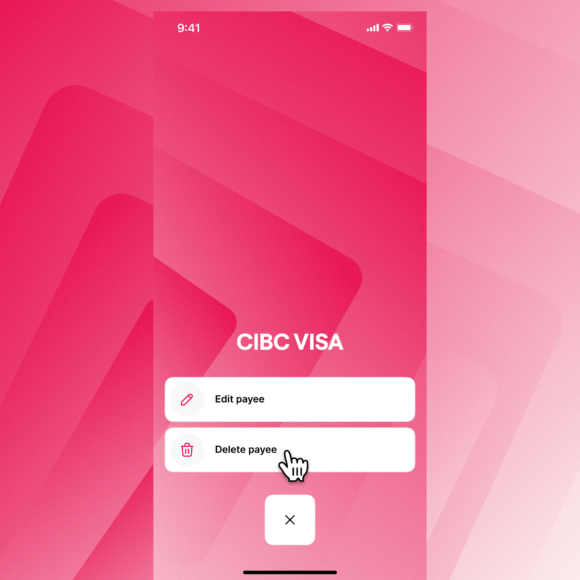
Step 1:

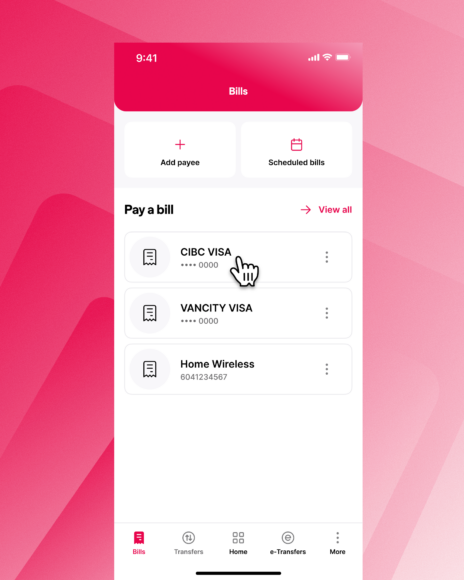
Log in to the Vancity Mobile App. After logging in, tap the Bills button along the bottom
menu of your screen. Then, select the payee you would like to delete.

Step 2:

Tap the ‘Delete payee’ button.

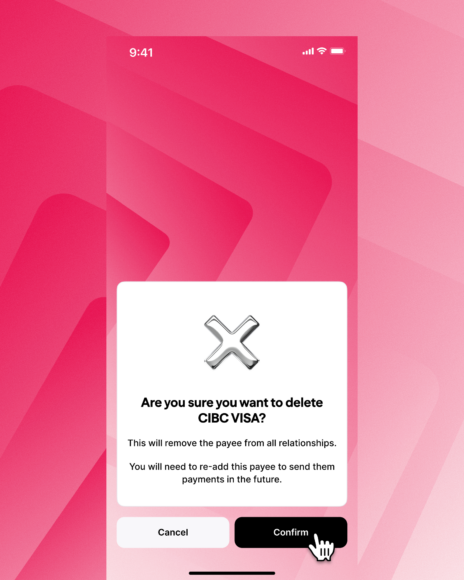
Step 3:

You’ll see a confirmation screen asking if you’d like to proceed with deleting this bill payee.
To complete the deletion, click the ‘Confirm’ button.

Note, you cannot add or delete payees using a mobile device unless it’s the Vancity mobile app.

  • Was this article helpful?
  • Yes   No