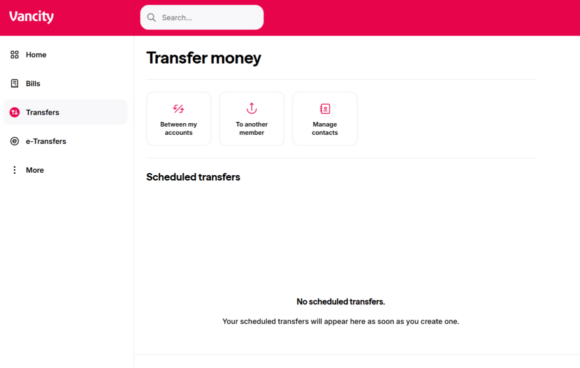
Step 1: Log in to Online Banking and select Transfers. Then click ‘Between my accounts’.
New to logging in? Learn more.
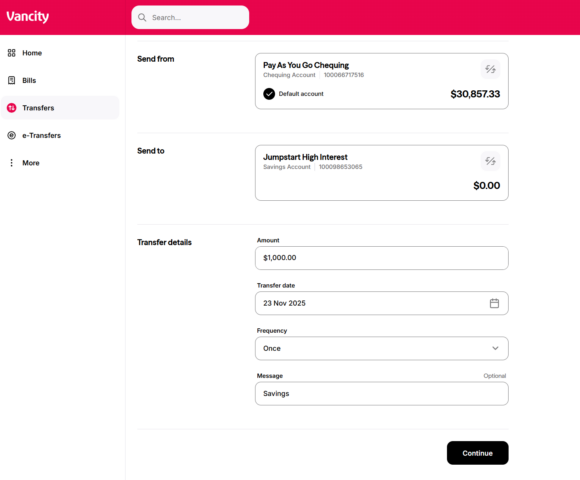
Step 2: Choose the accounts you want to transfer from and to. Enter the transfer details and select the frequency for recurring transactions. When ready, click ‘Continue’.
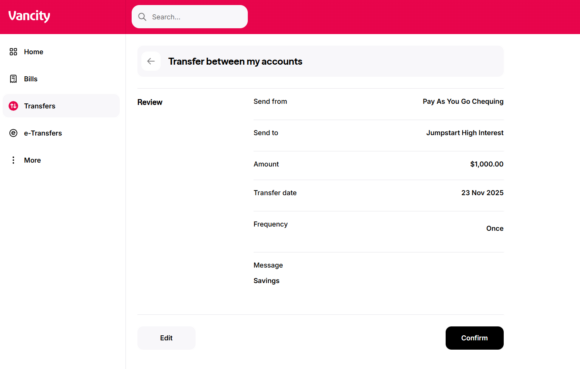
Step 3: Review your details and click ‘Confirm’ to finalize.
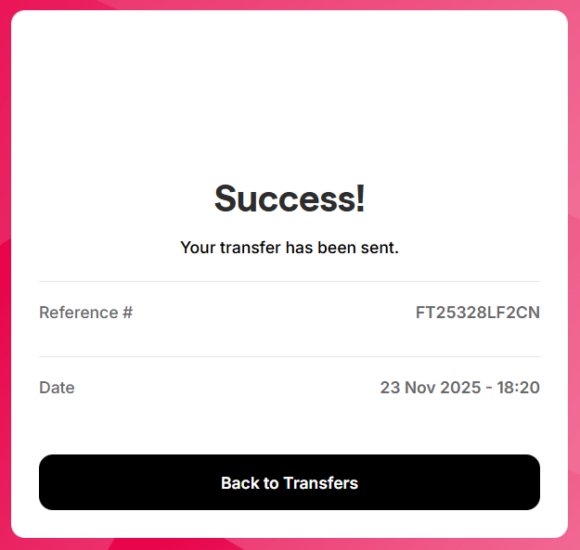
Step 4: A success message will appear to confirm your transfer is complete.

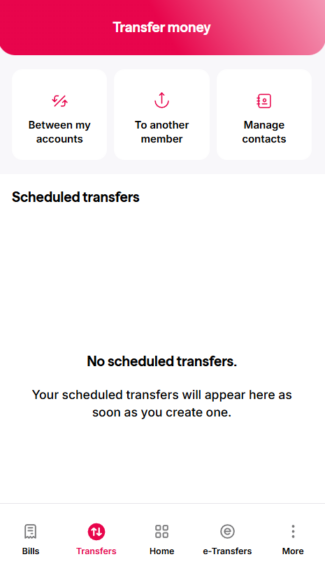
Step 2: Tap ‘Between my accounts’.
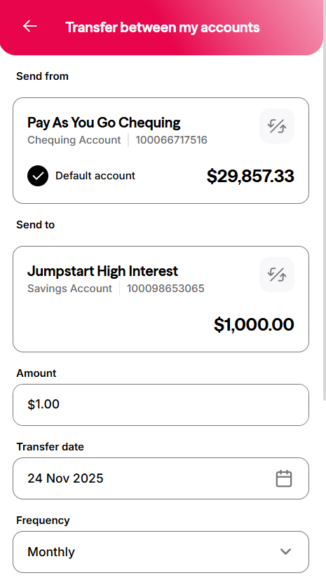
Step 3: Choose the accounts you want to transfer from and to. Enter the transfer details, select the frequency for recurring transactions, and tap ‘Continue’ when ready.
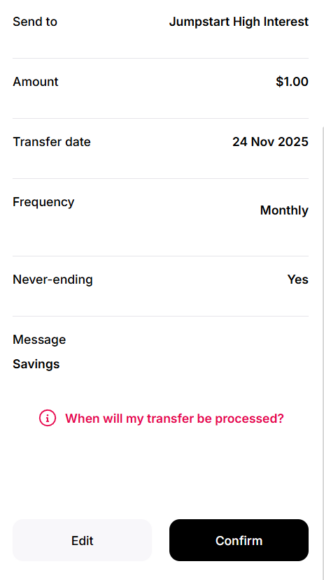
Step 4: Review your details and tap ‘Confirm’ to complete the transfer.