Please make sure the signer has logged in first and accepted the online agreement before the delegate does so.
If your delegate still can’t log into Online Banking and none of the troubleshooting steps below apply, please reset their password by following the steps in the question below.
Your delegate will need their registration email to enroll in MFA. If they don’t have that email, the business signer needs to follow these steps to re-trigger the email:

|
Step 1: Log into Online Banking. |
|
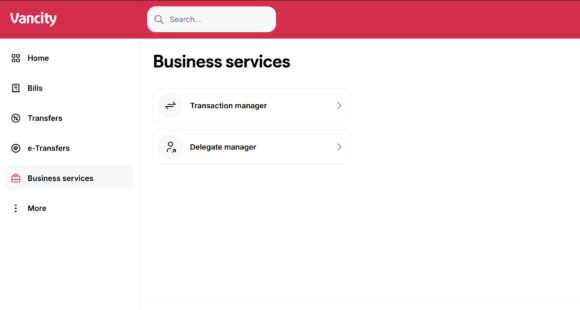
Step 2: Navigate to: Business services -> Delegate manager |

|
Step 3: Click on Edit (pencil icon). |

|
Step 4: If you already set up MFA for your delegate, check mark the box ‘Reset Password’. Confirm to proceed. Review and confirm to finish. |
After they log into Online Banking, navigate to the ‘Profile and Preferences’ section. Then select ‘Manage Multi Factor Authentication and Password Reset Settings’ and add additional authentication methods there.
Being asked to enter a code for Multi-Factor Authentication is a security enhancement. The delegate needs to receive their one-time code from the method that was set up to gain access to Online Banking.
If the delegate cannot receive their one-time code for any reason, the signer can reset their MFA settings by following these steps:

|
Step 1: Log into Online Banking. |
|
|
Step 2: Navigate to: Business services -> Delegate manager |
|
|
Step 3: Click on Edit (pencil icon). |
|
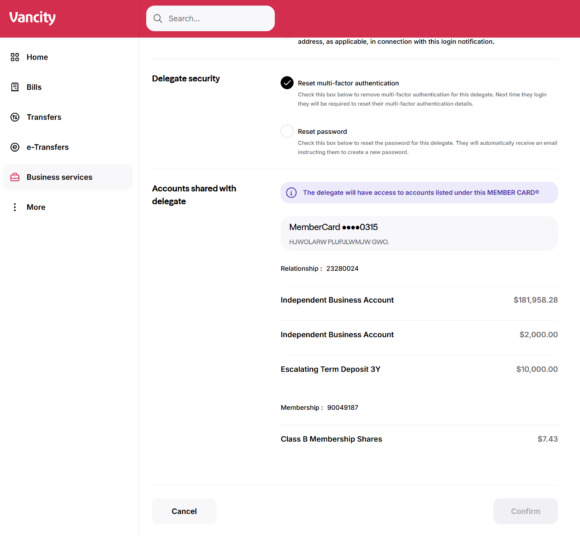
Step 4: If you already set up MFA for your delegate, check mark the box ‘Reset Multi-Factor Authentication’. |
Question: Where can I find current business service charges?
Answer: You can view all current fees in the Business Service Charge Bulletin.