Steps to follow
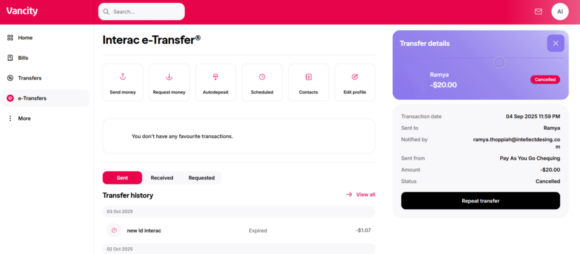
- Log in to Online Banking.
- From the left menu, select ‘e-Transfers’.
- Under Transfer history (default view), select ‘Sent’.
- Find the transfer you want to cancel and click ‘Cancel’ on the right side.
- A success message will appear, and the transfer details will show as Cancelled.
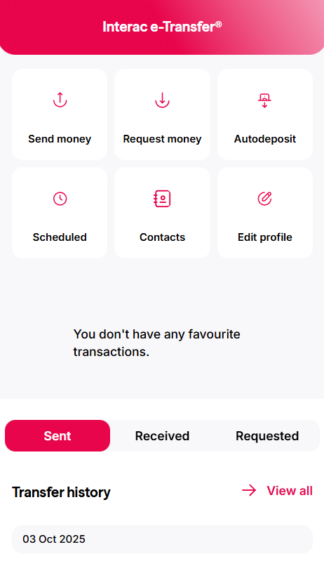
- Open the Vancity Mobile App.
- Tap the Interac e-Transfer tile on the home screen.
- Log in with your password, if prompted.
- Under Transfer history (default view), select ‘Sent’.
- Find the transfer you want to cancel and tap the red delete icon on the right.
- Tap ‘Confirm’ to complete the cancellation.