 |
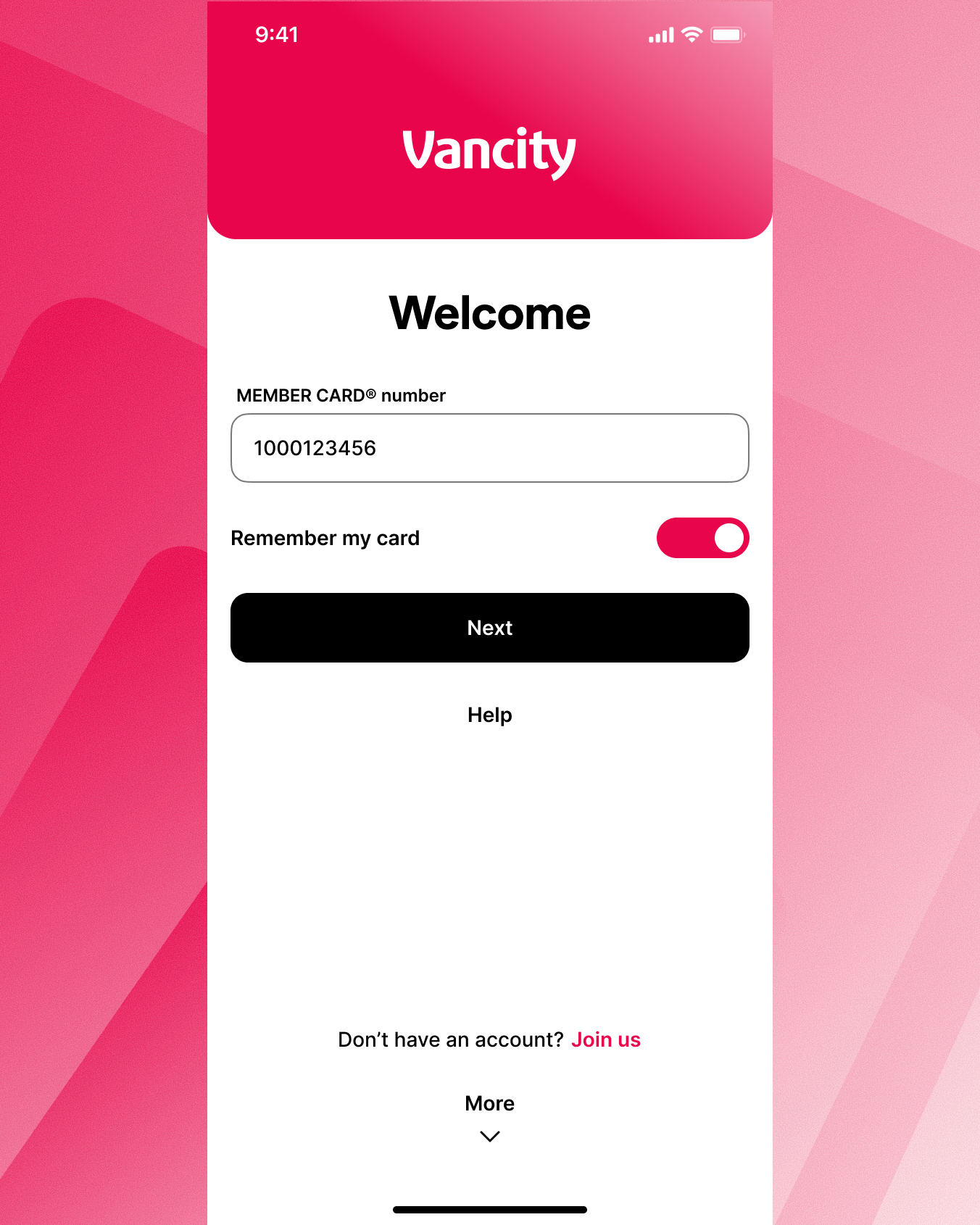
Step 1:
Enter your MEMBER CARD number and select ‘Next’. Toggle the ‘Remember card number’ option if you want to save this card number for next time. |
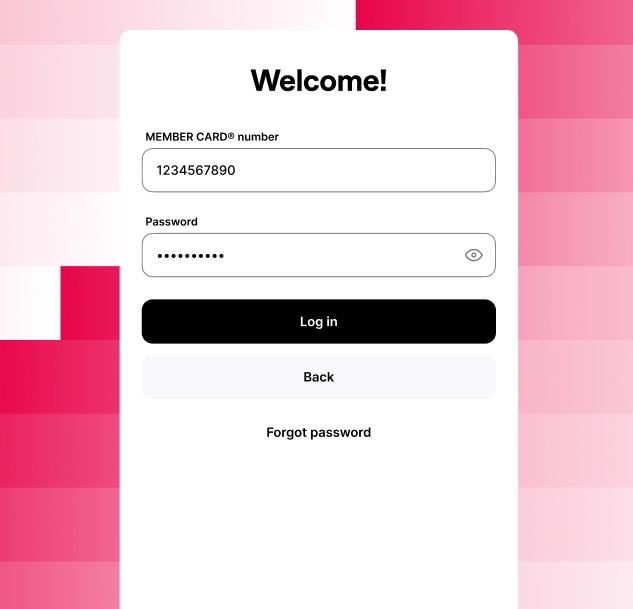 |
Step 2:
Enter your Password and select ‘Log in’. |
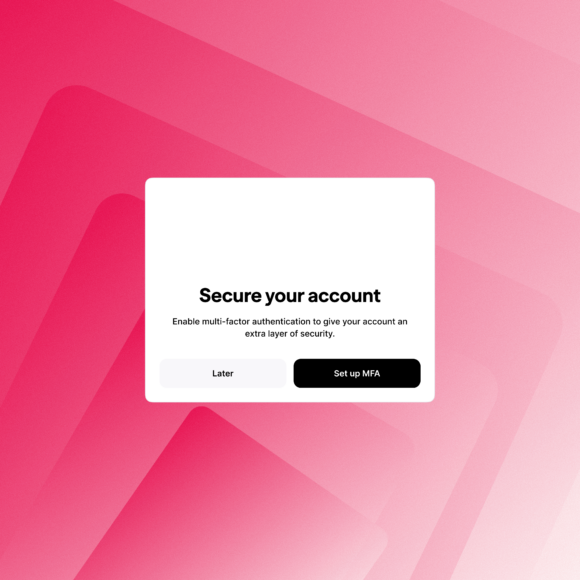 |
Step 3:
Select ‘Set up MFA’ to proceed with enabling Multi-Factor Authentication. |
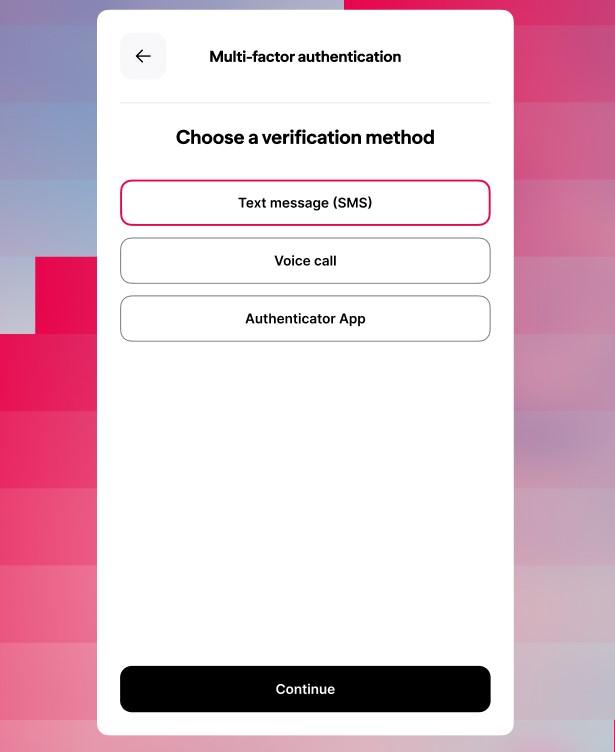 |
Step 4:
Select ‘Text message (SMS)’. |
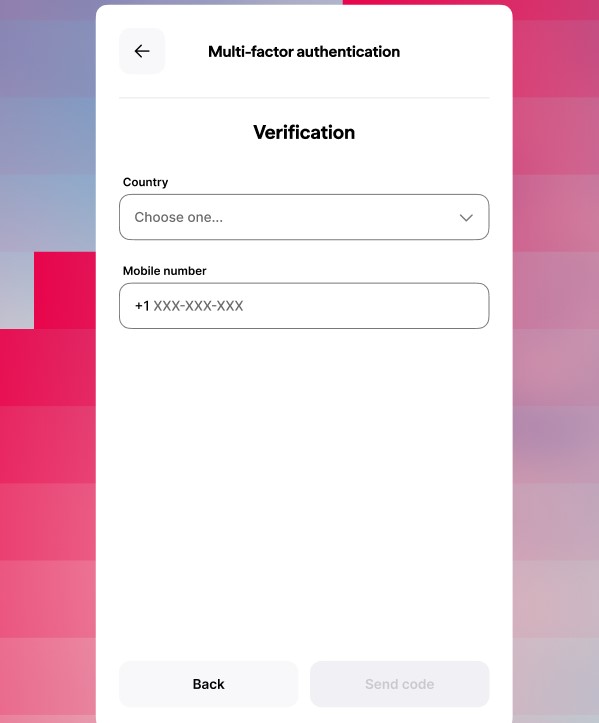 |
Step 5:
Enter your phone number and select ‘Send Code’. |
 |
Step 6:
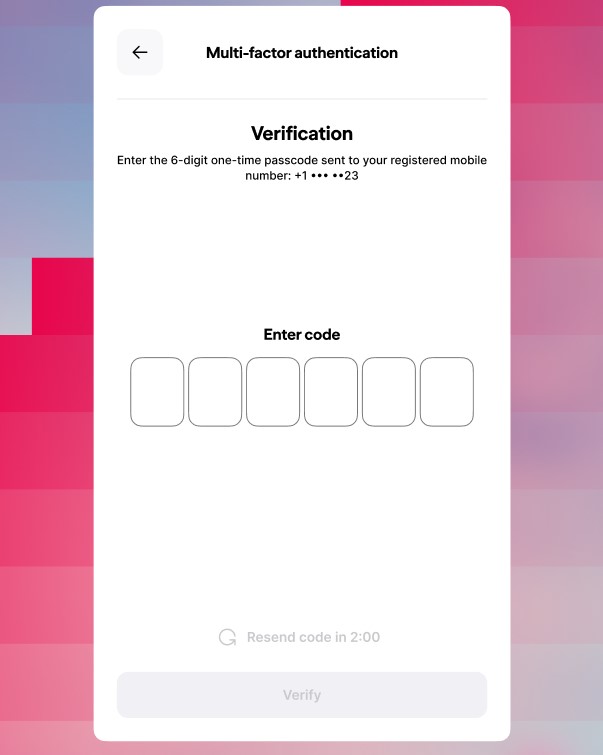
You’ll receive a one-time code via text message (SMS). Note, this code will not come from a Vancity number.
Enter your 6-digit one-time code into the boxes shown.
If automatic verification does not occur, click the ‘Verify’ button. (some devices may have settings that block auto-verification) |
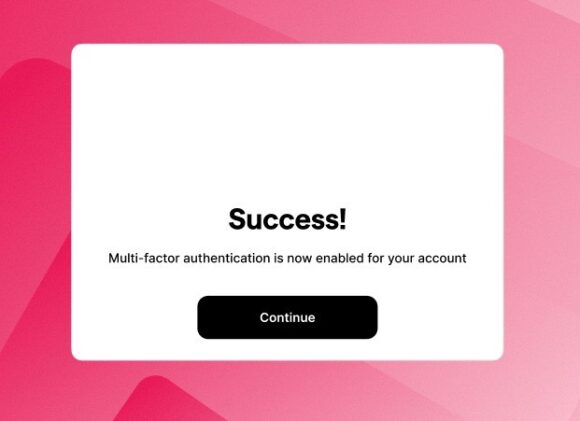 |
Step 7:
Once ‘Text Message (SMS)’ is successfully set up, select ‘Continue’. |
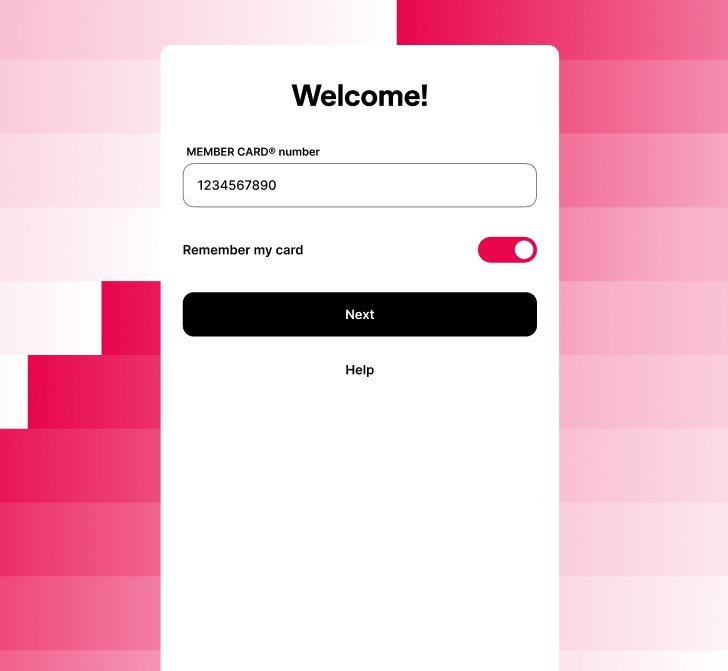 |
Step 1:
Enter your MEMBER CARD number and select ‘Next’. Toggle the ‘Remember card number’ option if you want to save this card number for next time. |
|
Step 2:
Enter your Password and select ‘Login’. |
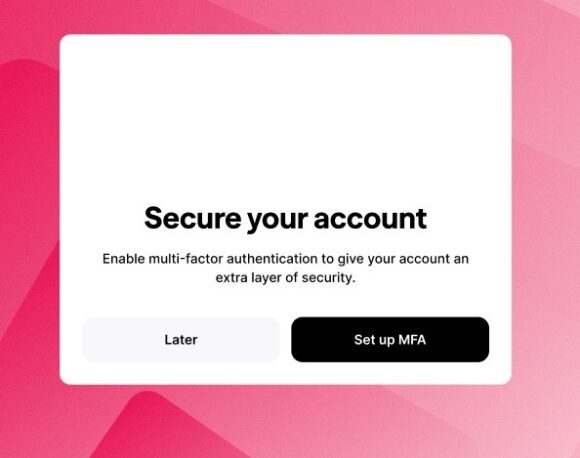 |
Step 3:
Select ‘Set up MFA’ to proceed with enabling Multi-Factor Authentication. |
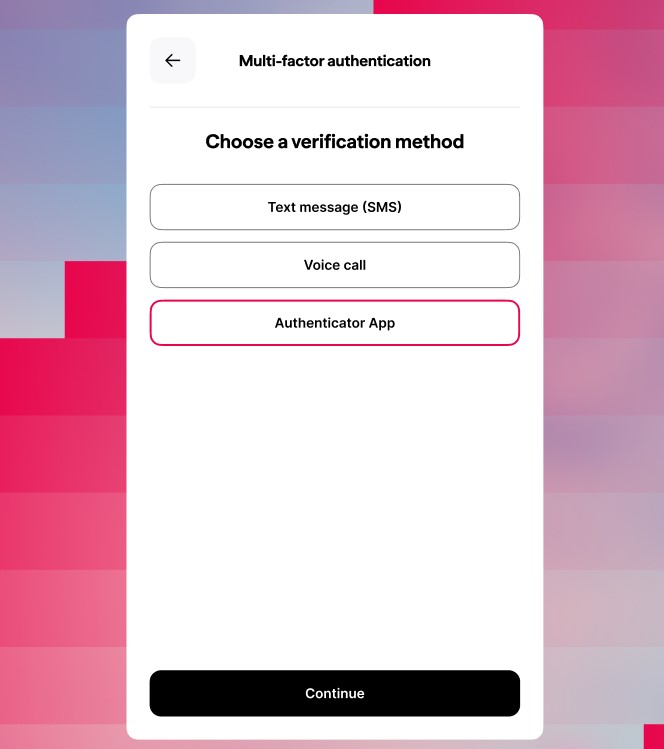 |
Step 4:
Select ‘Authenticator App’. |
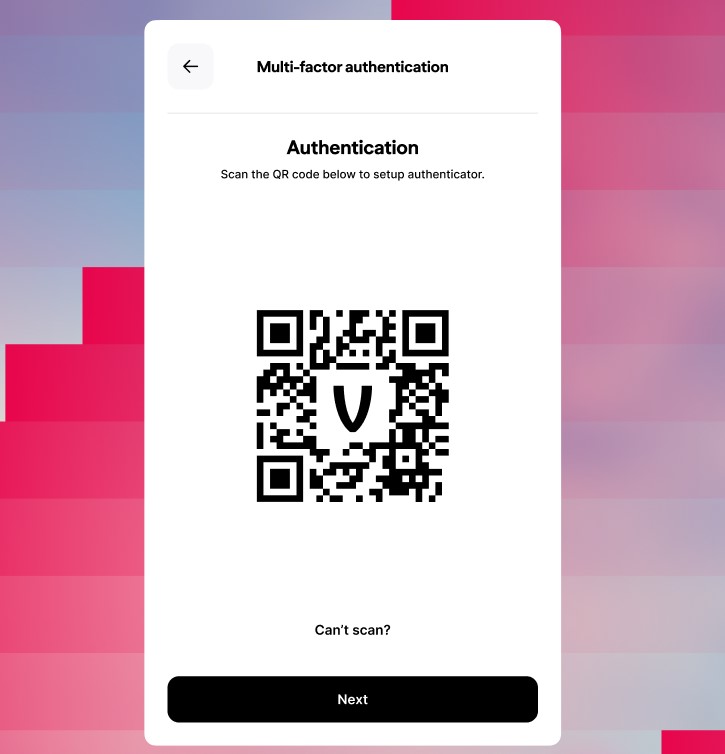 |
Step 5:
Follow the on-screen instructions and scan the QR Code.
Need to manually add without using the QR code? See the steps here. |
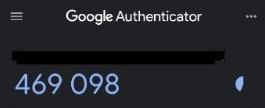 |
Step 6:
You’ll see a one-time code displayed in the authenticator app. |
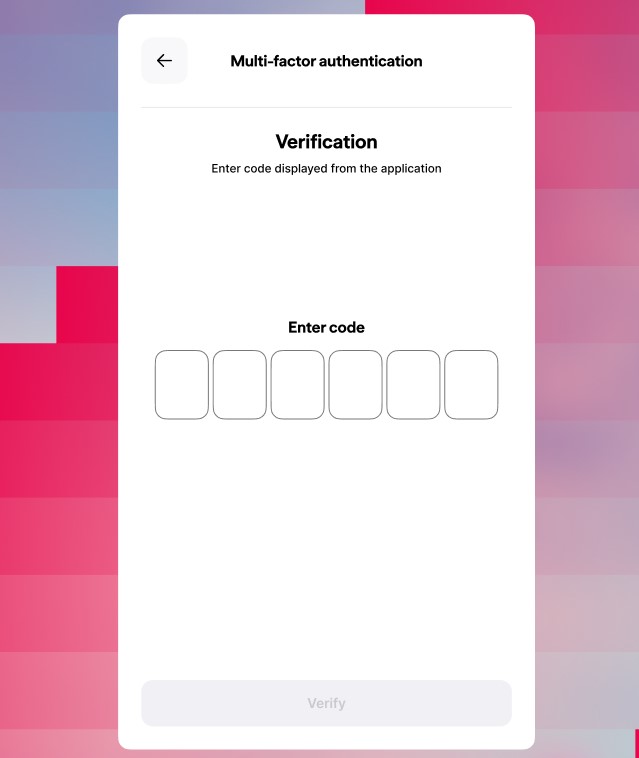 |
Step 7:
Enter the one-time code and select ‘Verify’. |
|
Step 8:
Once the Authenticator App is successfully set up, select ‘Continue’. |
|
Step 1:
Enter your MEMBER CARD number and select ‘Next’. Toggle the ‘Remember card number’ option if you want to save this card number for next time. |
|
Step 2:
Enter your password and select ‘Login’. |
|
Step 3:
Select ‘Set up MFA’ to proceed with enabling Multi-Factor Authentication. |
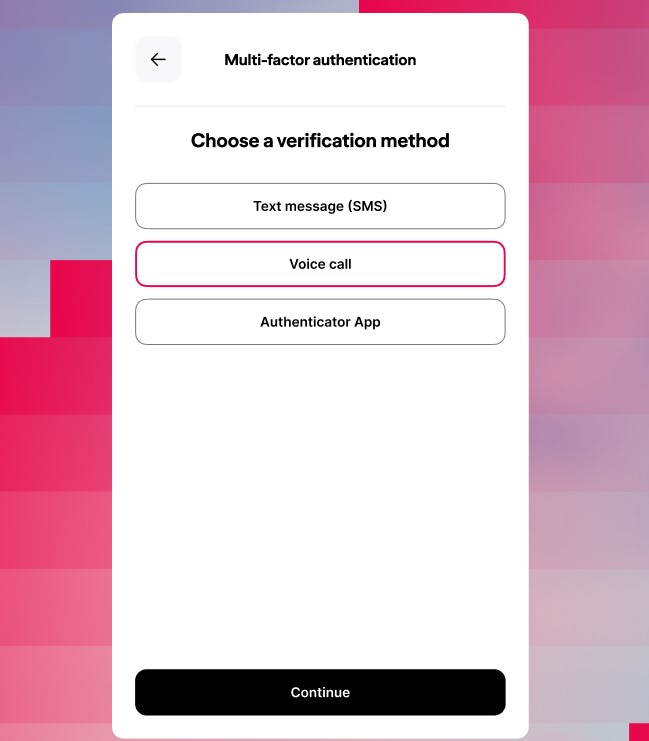 |
Step 4:
Select ‘Voice Call’. |
|
Step 5:
Enter your phone number and select ‘Call’. Note: Spam filters or call-blocking settings on your phone may prevent the call from coming through. Troubleshooting tip: If you don’t receive the MFA call, check your phone’s spam or call-blocking settings to ensure the call isn’t being automatically filtered or blocked. |
|
Step 6:
You’ll receive an automated phone call that will speak the one-time code. Note: This call will not be coming from a Vancity number. Enter the 6-digit code and select ‘Verify’. |
|
Step 7:
Once Voice Call Authentication is successfully set up, select ‘Continue’. |