How do I cancel an Interac e-Transfer?
Follow these steps to cancel any sent e-Transfers.
There are two specific cases where members will not be able to cancel an e-Transfer.
- Cancel a Send Money transaction to a member that has set up Autodeposit while the e-Transfer is pending deposit
- Cancel a fulfillment of Request Money transaction pending deposit.
Steps to follow


- Log in to online or mobile banking and navigate to Transfer Money on the left menu.
- Select View/Resend/Cancel Pending Transfers.
- Click ‘Cancel Pending Transfers’ on the page displayed.
- Click ‘Continue’ to confirm.
- A “Success” message will appear on the next screen.


- Open the Vancity Mobile app.
- Select the Interac e-Transfer tile on the home screen of the app.
- Login with your password if prompted.
- Select “Send Money”.
- Select “Pending”.
- Press the red delete icon to the right of the e-transfer.
- Press “Confirm” to confirm.

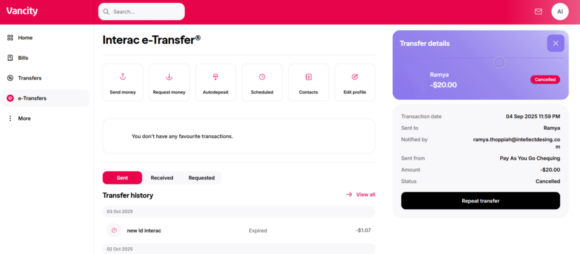
- Log in to Online Banking.
- From the left menu, select ‘e-Transfers’.
- Under Transfer history (default view), select ‘Sent’.
- Find the transfer you want to cancel and click ‘Cancel’ on the right side.
- A success message will appear, and the transfer details will show as Cancelled.
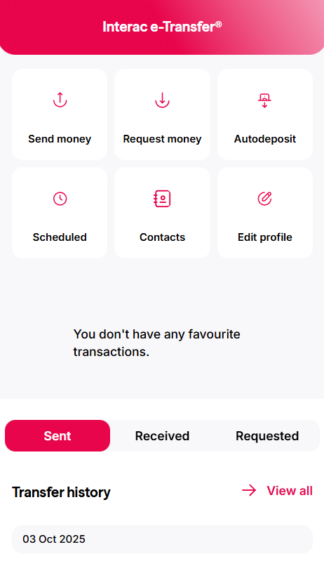
- Open the Vancity Mobile App.
- Tap the Interac e-Transfer tile on the home screen.
- Log in with your password, if prompted.
- Under Transfer history (default view), select ‘Sent’.
- Find the transfer you want to cancel and tap the red delete icon on the right.
- Tap ‘Confirm’ to complete the cancellation.