Access
In order to access your Business Banking online, you will need to be provided Delegate login credentials by an authorized signer on the account. With these credentials you will be able to access through the desktop site. You will also need to setup a method for Multi-Factor Authentication.
Note: You will not be able to access the account through mobile web or the Vancity mobile app.
Access and Permission Settings
General Delegate access and transaction permissions are established, modified and cancelled by the authorized signer of a business account. Vancity staff are unable to assist in setting up or modifying the user profiles for Delegates.
You can access Online Business Banking by logging in through vancity.com
A Delegate’s password can only be reset by the authorized signer that created their profile. This reset can only be done through the desktop access of Online Business Banking. To reset a delegate’s password, follow the steps below:
|
|


The Delegate will then receive an email at the address specified in their profile with their password. At the first login, the delegate will be prompted to create a new password.
Only authorized signers have the ability to reset your password. Vancity staff are unable to assist with this request as your profile is managed by the authorized signers of the account you are accessing. Please contact them for further assistance.
There are various levels of authorization for Delegates that are determined and/or modified by the authorized signers of the account.
| Status | Action |
| Read-only | View accounts and manage the following:
|
| Initiator | view accounts and initiate transactions including:
|
Initiating and Performing Transactions:
If you have been provided ‘Initiator’ access, you will be able to initiate a transaction that will require an approval from an authorized signer (or two, depending on the specific setup of the business account).
 |
Step 1: Login to your account and click ‘Transfers’ icon next to an account you’d like to transfer from or click the ‘Transfers’ tab. |
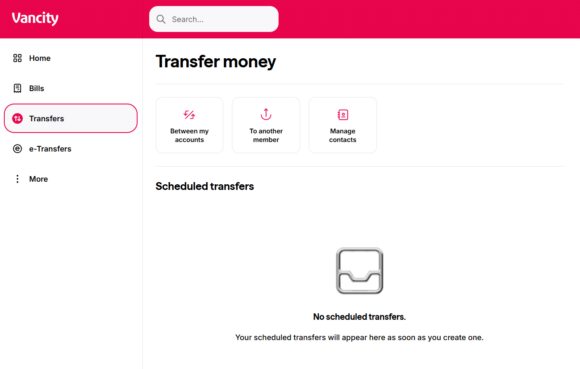 |
Step 2: Select ‘Between my accounts’. |
 |
Step 3: Select an account to transfer to (or from if not populated already), fill in the information, and click ‘Continue’. Review and click ‘Confirm’ to complete the transfer initiation.
Note: That transaction will then remain in ‘pending’ status for up to 7 days until an authorized signer has approved it. While in ‘pending’ status, this transaction will not be processed nor impact the balance of the account. |
Transactions initiated by a delegate or those involving dual signatures can be viewed within the ‘Transaction Manager’. This is accessed through the Business Services tab in the the left-hand toolbar.
These transactions will be categorized in three ways:
| Category | Related Information |
| Transactions require your approval | These transactions are in ‘pending’ status and require your approval. Note: As a delegate, you will not expect to see any transactions in this category. |
| Transactions require approval from others | These transactions are in ‘pending’ status and have an approval outstanding. In order to view the history, click the ‘Show history‘ link next to the header of the transaction. This will provide you details of the individuals who have initiated and approved to that point.
From this category, you are able to recall a pending transaction by clicking the ‘Recall‘ button at the bottom of the transaction details. |
| Transactions rejected, recalled or expired | These transactions have been rejected, recalled or have expired. To view the details of these transactions, click the ‘Show history‘ link next to the header of the transaction. |
A transaction stays in pending status for 7 calendar days before it expires. There are no impacts to the balance of the account as pending transactions are not processed until they have been fully approved.
An expired transaction can be viewed in the ‘Transaction Manager’. If this transaction requires processing, it must be re-initiated.