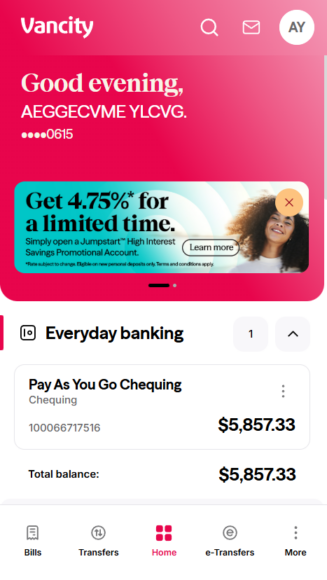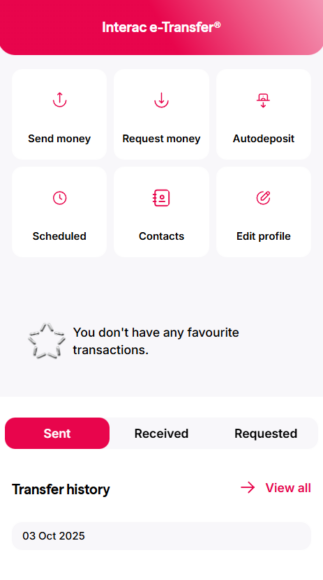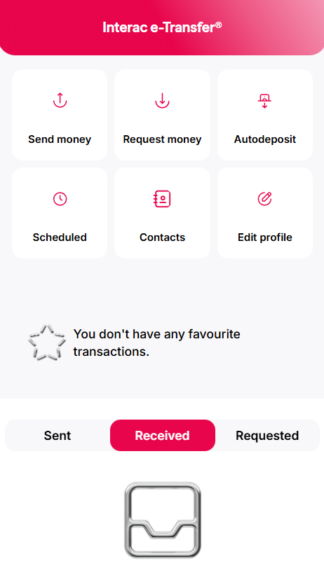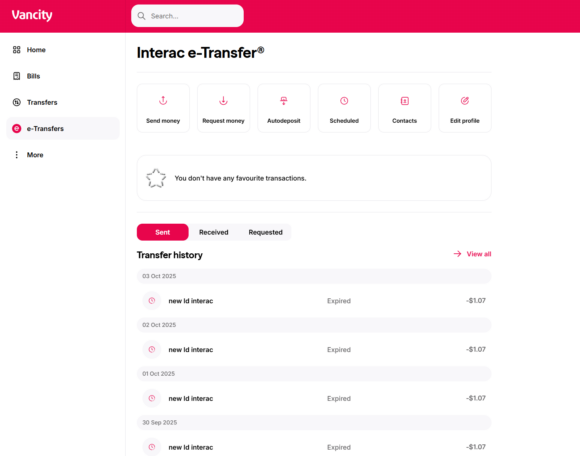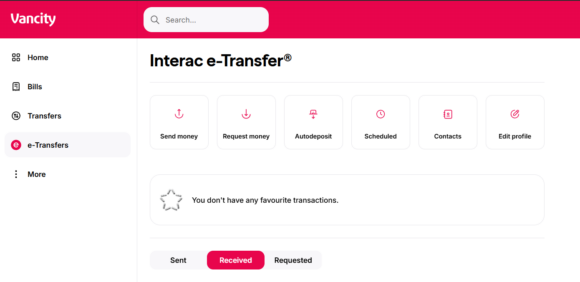
How do I review my history of Interac e-Transfers? For received e-transfers Follow these steps: Online Banking Mobile app Log in to Online Banking and select e-Transfers. By default, you’ll land on the Sent Transfers tab. Click ‘Received’ to see all e-Transfers you’ve received. Step 1: On the home screen, tap e-Transfers. Step 2: You’ll land on the Sent tab by default. Step 3: Tap ‘Received’ to view your incoming e-Transfers. For sent e-transfers Follow these steps: Desktop Mobile app Log in to Online Banking. Select e-Transfers from the menu. You’ll land on the Sent transfers tab by default, where you can review your sent e-Transfers. Step 1: On the home screen, tap e-Transfers. Step 2: You’ll land on the Sent tab by default, where you can review your sent e-Transfers. Related posts: How do I set up Autodeposit for Interac e-Transfer? How do I “Request Money” through Interac e-Transfer? How do I add a contact to send or request an Interac e-Transfer®? Request, Send and Receive Money with Interac e-Transfer Go to vancity.com Was this article helpful? Yes No