Your digital banking experience is designed to be simple and customizable. This guide will help you download your Account Activity so you can import it into third-party finance software.
Steps to follow
First, you have to download your Account Activity from online banking.
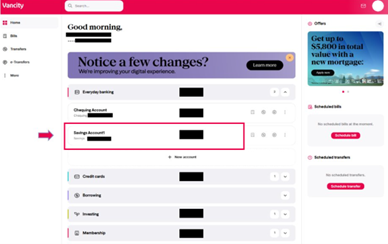 |
Step 1: From the homepage or your Everyday Banking portfolio, select the account you want to download transactions from. |
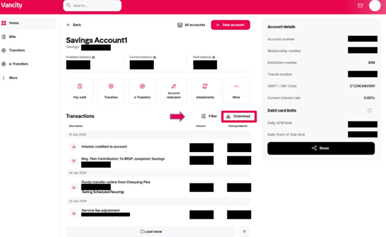 |
Step 2: Select Download. |
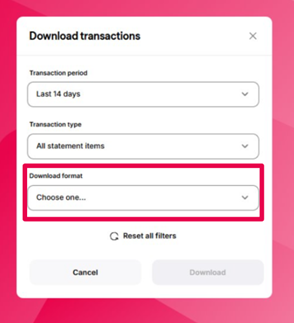 |
Step 3: A pop-up window will appear. Use the dropdown menus to choose the Transaction Period and Transaction Type you need. |
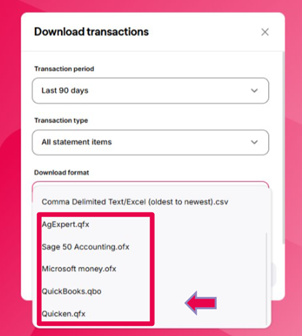 |
Step 4: Under Download Format, scroll down and select the format that matches your third-party finance software. |
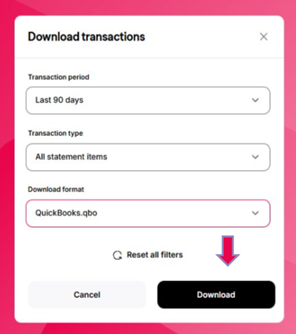 |
Step 5: Click Download again. |
| Step 6: Your file will download to your device in the selected format. |
Once a file is generated, you can import it into your finance software (such as Quicken® and QuickBooks®). If you’re having difficulty connecting your account, please contact your finance software support directly for assistance.
Note: Since the introduction of Multi-Factor Authentication (a mandatory security feature of Vancity online and mobile app banking) the account owner may be required to enter a one-time code when accessing their Vancity accounts.
© Quicken Inc. All rights reserved. Quicken is a registered trademark of Intuit Inc., used under license.
© Copyright © Intuit, Inc. All rights reserved. Intuit and QuickBooks are registered trademarks of Intuit, Inc. Terms and conditions, features, support, pricing, and service options subject to change without notice.