 |
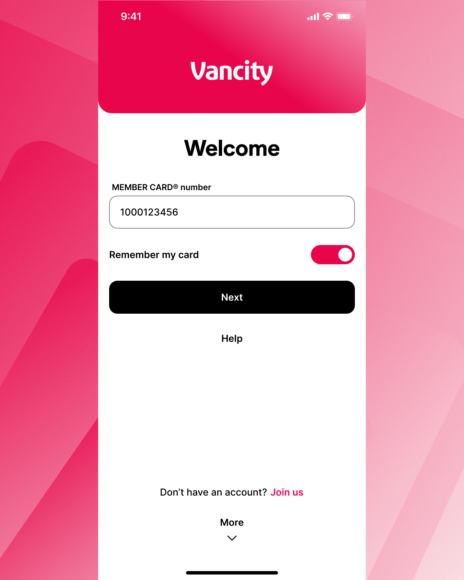
Step 1:
Log in to the Vancity mobile app with your credentials. |
 |
Step 2:
On the home page, tap your profile icon in the top-right corner (it shows your initials or profile picture) to open Settings. |
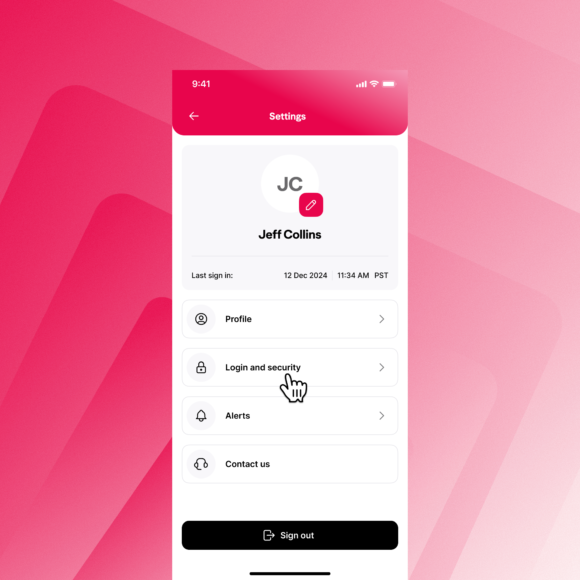 |
Step 3:
In Settings, select ‘Login & Security.’ |
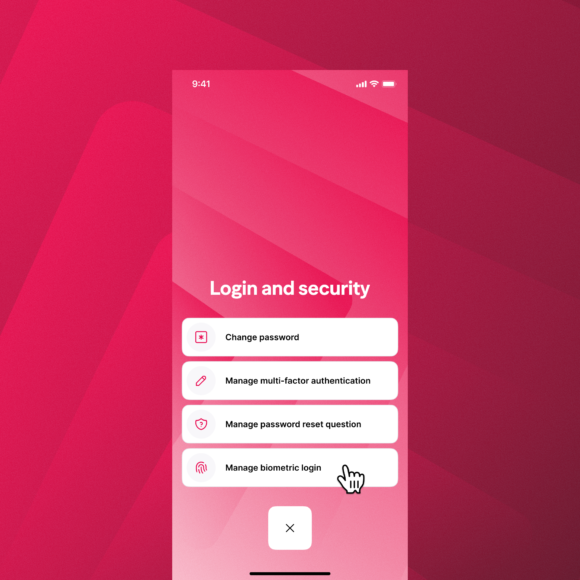 |
Step 4:
In Login & Security select ‘Manage Biometric login’. |
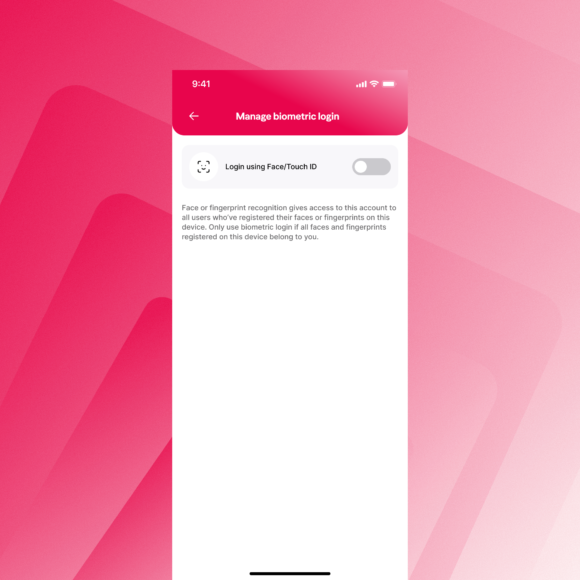 |
Step 5:
Toggle ‘Face/Touch ID’ on. |
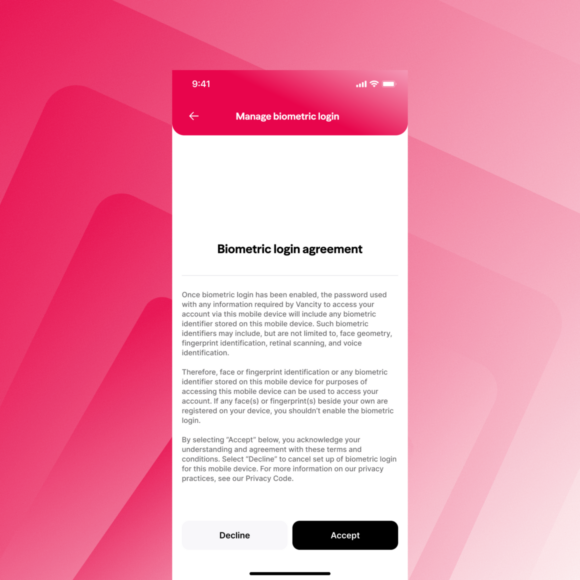 |
Step 6:
Review the Agreement and tap ‘Accept’. |
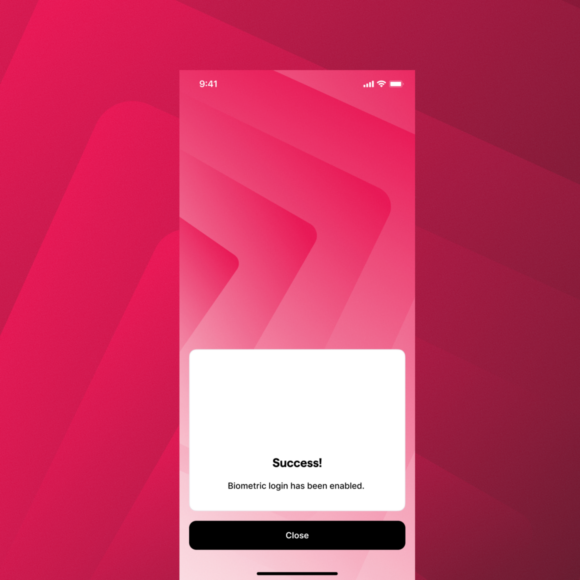 |
Step 7:
Your device will capture your Face/Touch ID and you can now use it the next time you log in to the mobile app. |