|
Step 1:
Log in to Online Banking and select ‘Bills’. Choose the payee you want to pay. |
 |
Step 2:
Select the account to pay from, then confirm the payee, amount, and payment date. Click ‘Continue’ when ready. |
 |
Step 3:
Review the payment details and click ‘Confirm and pay’ to finalize. |
 |
Step 4:
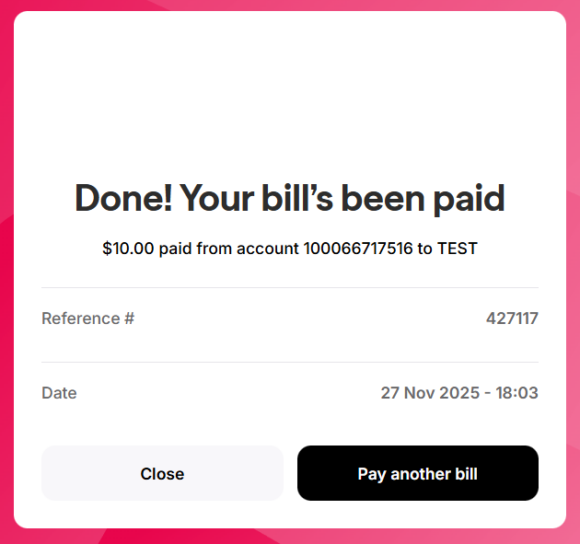
A confirmation message will appear once your bill payment is complete. |
To schedule payments to more than one bill payee:
 |
Step 1:
Go to Bills and choose Select multiple to pick more than one payee. |
 |
Step 2:
Use the Payment Date field to choose a future date for the scheduled payments. |
To schedule a payment to one bill payee:
 |
Step 1:
On the Bills screen, select the payee you want to pay. |
|
Step 2:
In the Payment Date field, choose a future date to schedule the payment. |
 |
Step 1:
Log in to mobile app and tap ‘Bills’. Select the payee you want to pay. |
 |
Step 2:
Choose the account to pay from, then confirm the payee, amount, and date. Tap ‘Continue’ when ready. |
 |
Step 3:
Review the payment details and tap ‘Confirm and pay’ to finalize. |
 |
Step 4:
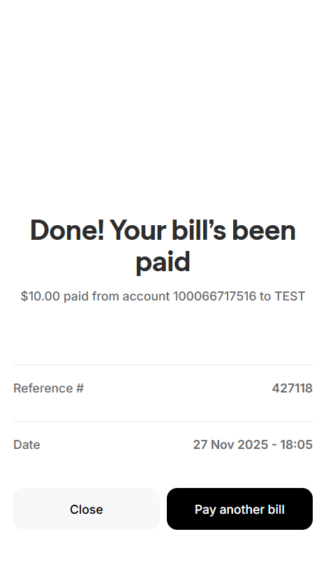
A confirmation message will appear once your bill payment is complete. |