How do I send an Interac e-Transfer?

Interac e-Transfer allows you to send money through online banking, securely and quickly, to anyone with an online banking account in Canada and an email address or mobile phone.

Steps to follow


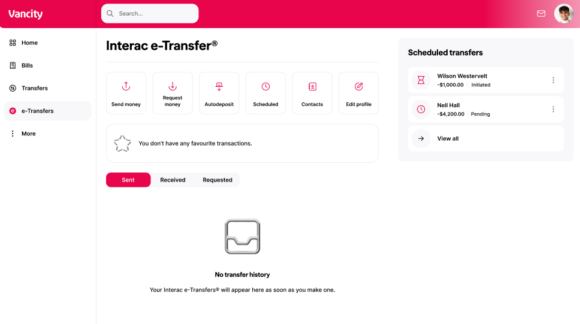
  1. Log in to online or mobile banking and go to “Transfer Money” on the left menu.
  2. Click on Send Interac e-Transfer.
  3. Choose your recipient in the “Transfer To” section.
  4. Under “Transfer From”, choose the account you want to use to send the money.
  5. Enter the “Amount”.
  6. Enter the “Message” that your recipient will see.
  7. Select “Continue” and then “Confirm” on the next page.

  1. Open the Vancity Mobile app.
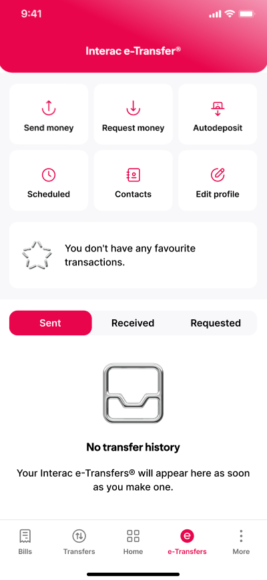
  2. Tap the Interac e-Transfer tile on the home screen of the app.
  3. Log in with your password if prompted.
  4. Tap “Send Money”.
  5. In the “From” section, choose the account you want to send the money with.
  6. In the “To” section, choose your recipient.
  7. Enter the “Amount”.
  8. Enter the “Memo” that your recipient will see.
  9. Tap “Continue” and then “Confirm” on the next page.



  1. Log in to online or mobile banking and go to “e-Transfers” on the left menu.
  2. Choose “Send money”.
  3. Choose your recipient in the “Transfer To” section.
  4. Under “Transfer From”, choose the account you want to use to send the money.
  5. Enter the “Amount”.
  6. Enter the “Message” that your recipient will see.
  7. Select “Continue” and then “Confirm” on the next page.


  1. Open the Vancity Mobile app.
  2. Tap the Interac e-Transfer tile on the menu screen of the app.
  3. Choose “Send Money”.
  4. In the “From” section, choose the account you want to use to send the money.
  5. In the “To” section, choose your recipient.
  6. Enter the “Amount”.
  7. Enter the “Memo” that your recipient will see.
  8. Tap “Continue” and then “Confirm” on the next page.

  • Was this article helpful?
  • Yes   No

Do you still need help?

Search

Call us