How do I log in if I forgot my password or MEMBER CARD number?
If you haven’t set up the Password Reset feature, you will need to call our Member Services Centre or visit any branch to reset your password.
Please allow up to 15 minutes after completing the Password Reset setup and before using the Forgot Password feature.
If you’re unable to log in to Online Banking and need to view your Visa information, you can access it through our Manage My Visa card site.
Travelling abroad or don’t have access to the device you used to send your MFA code to?
- If you are traveling without any of your devices, you’ll only be able to access your accounts by calling Member Services.
- If you know in advance that you won’t have access to your usual device, please update your MFA settings before you leave. You can receive MFA codes on any device with your authenticator app (e.g., phone, tablet, laptop). You can find a step-by-step guide on this page.
If you’re already abroad or don’t have access to your phone, you won’t be able to change the way you receive your MFA code. Please call Member Services for assistance in accessing your accounts:
Monday to Saturday: 8 am to 8 pm, Sunday: 10 am to 5:30 pm
Vancouver: 604-877-7000
Victoria: 250-519-7000
Toll-free: +1-888-826-2489
International: +IAC-800-826-2489-0
(IAC = International Access Code, varies by country)
If you’ve set up the Password Reset feature, follow these steps:
![]() |
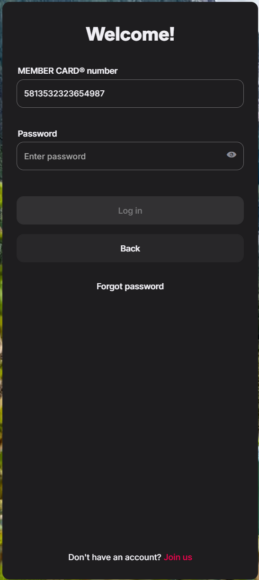
Step 1:
On the login screen, select ‘Forgot password’. |
![]() |
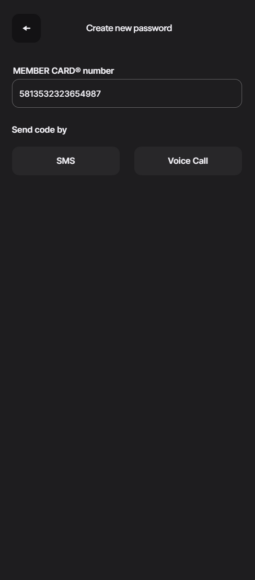
Step 2:
Select either ’SMS’ or ‘Voice Call’ as your preferred method of receiving a one-time, verification code. Learn more about MFA on this page.
Important: You must have either Text Message (SMS) or Voice Call set up as MFA factors to use this password reset option. |
![]() |
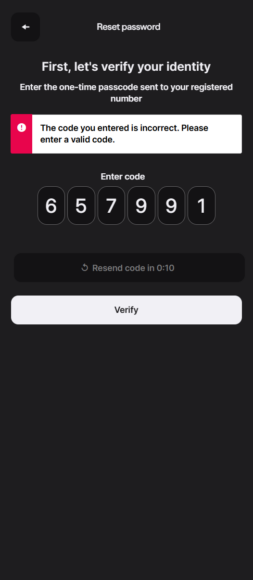
Step 3:
Once you receive the one-time code, enter the 6-digit passcode and select ‘Verify’. If the code is incorrect, you’ll be notified.
Step 4:
If the passcode is correct, you’ll be prompted to answer your Password Reset Question.
Enter your answer and select ‘Continue’.
Step 5:
Enter your new password twice and select ‘Reset password’. You can now log in using your new password. |