![]() |
Step 1:
Log in to Online Banking.
|
|
![]() |
Step 2:
Navigate to the ‘Profile and Preferences’ section.
Then select ‘Manage Multi-Factor Authentication and Password Reset Settings’. |
|
![]() |
Step 3:
Choose ‘Update’ or ‘Setup’ next to ‘Reset Question’. Important: You must have Voice Call or Text Messaging (SMS) as Active Methods. |
|
![]() |
Step 4:
Choose your Password Reset question.
Then enter your answer (must be over 4 characters long) and select ‘Save Changes’. |
|
![]() |
Step 1:
Enter your MEMBER CARD number and Password and select ‘Login’. |
![]() |
Step 2:
Click on ‘Settings’ |
![]() |
Step 3:
Click on ‘Security’ |
![]() |
Step 4:
Next to ‘Reset Question’, choose ‘Update’ or ‘Setup’. Important: You must have Voice Call or Text Messaging (SMS) as Active Methods. |
![]() |
Step 5:
Choose your Reset Question. |
![]() |
Step 6:
Enter your answer (must be over 4 characters long) and select ‘Save Changes’. |
| Step 1:
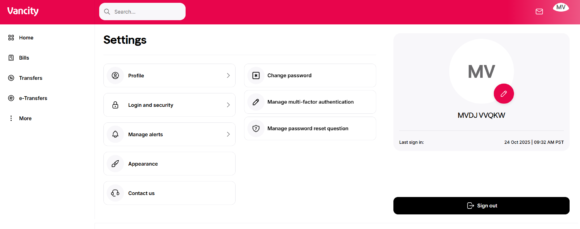
Log in to Online Banking and click the profile icon at the top right.
|
||
![]() |
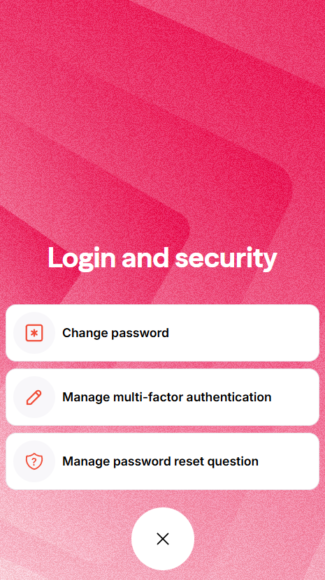
Step 2:
Choose “Login and security” which will open up a submenu. Select “Manage password reset question”. |
|
![]() |
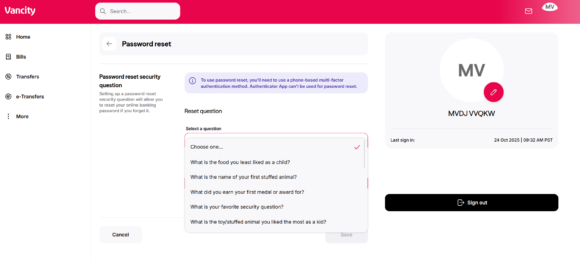
Step 3:
Choose your Password Reset question.
Then enter your answer (must be over 4 characters long) and select ‘Save’. |
|
![]() |
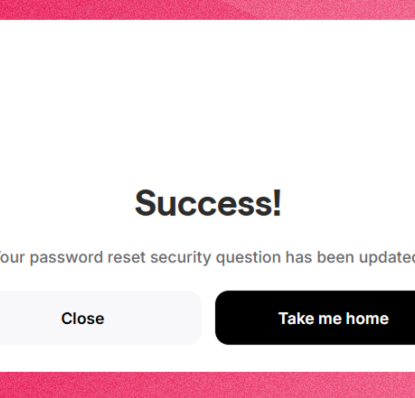
Step 4:
Your security question will be saved upon the success screen. |
|

![]() |
Step 1:
Log in to Online Banking mobile app and click the profile icon at the top right. |
![]() ![]() |
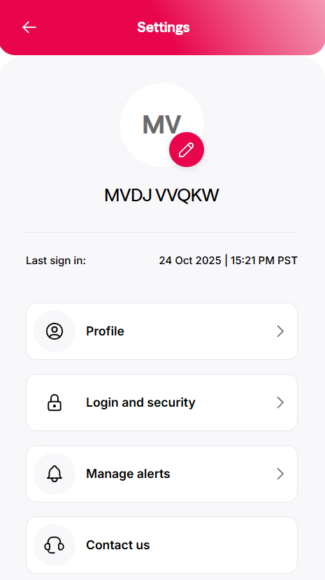
Step 2:
Choose “Login and security” which will open up a fullscreen submenu. Select “Manage password reset question”. |
![]() |
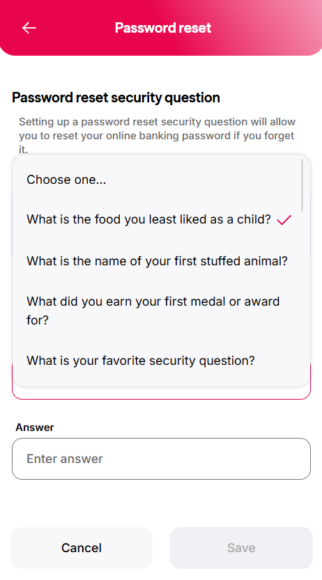
Step 3:
Choose your Password Reset question.
Then enter your answer (must be over 4 characters long) and select ‘Save’. |
![]() |
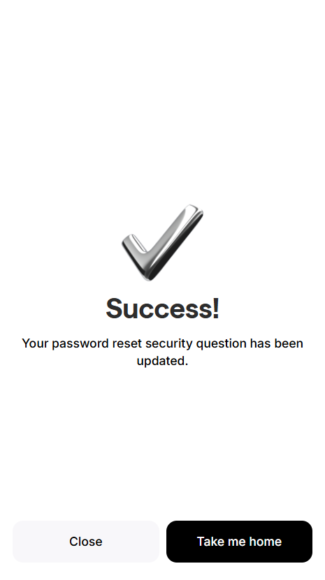
Step 4:
Your security question will be saved upon the success screen. |