Steps to follow
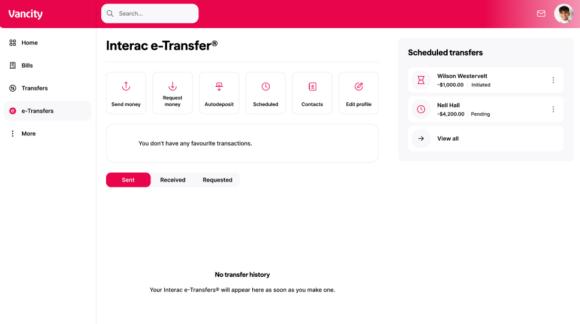
- Log in to online or mobile banking and go to “e-Transfers” on the left menu.
- Choose “Send money”.
- Choose your recipient in the “Transfer To” section.
If the recipient does not have autodeposit set up, you must create a security question and answer when sending the e-Transfer.
If the recipient has autodeposit set up, no security question or answer is required (field will be hidden) and you screen will display that ‘x has Autodeposit enabled. The transfer will be automatically deposited into their account’. - Under “Transfer From”, choose the account you want to use to send the money.
- Enter the “Amount”.
- Enter the “Message” that your recipient will see.
- Select “Continue” and then “Confirm” on the next page.
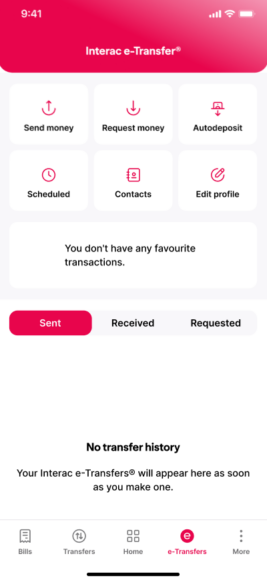
- Open the Vancity Mobile app.
- Tap the Interac e-Transfer tile on the menu screen of the app.
- Choose “Send Money”.
- In the “From” section, choose the account you want to use to send the money.
- In the “To” section, choose your recipient.
If the recipient does not have autodeposit set up, you must create a security question and answer when sending the e-Transfer.
If the recipient has autodeposit set up, no security question or answer is required (field will be hidden) and you screen will display that ‘x has Autodeposit enabled. The transfer will be automatically deposited into their account’. - Enter the “Amount”.
- Enter the “Memo” that your recipient will see.
- Tap “Continue” and then “Confirm” on the next page.