Steps to follow
|
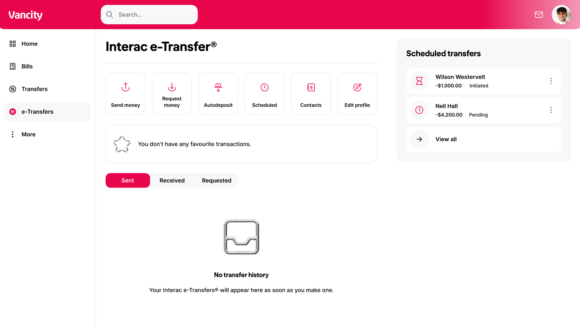 |
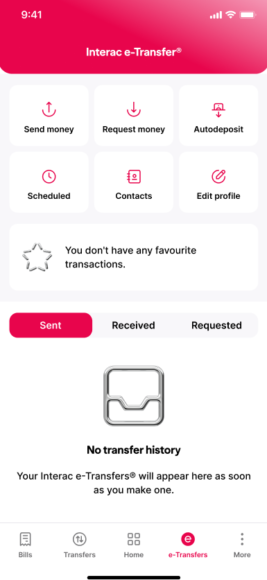
- Step 1: Open the Vancity Mobile app and login. Navigate to Transfer Money on the bottom menu.
- Step 2: Select “Autodeposit” from the menu.
- Step 3: Enter your email address and link your account. Any transfers to the registered email address will be automatically deposited into this account. You can register up to 5 different email addresses to direct funds into different Vancity accounts.
- Step 4: You will receive an email to confirm your registration. Check your inbox and click “Done”.
More FAQs
Once you have registered for Autodeposit with, the name you used to create your profile within Interac e-Transfer settings will be displayed to anyone who sends you an e-transfer.
You will receive a notification by email every time that you receive funds through the Autodeposit feature. This email will let you know that money has been deposited into your bank account and will provide any details associated with the transfer.