Steps to follow
You can view your eStatements by signing in to Online Banking through the Vancity website and mobile app.
If your eStatement hasn’t been posted yet, you may see the message: “eStatements are unavailable at the moment. Please try again later.”
If your eStatement hasn’t been posted yet, you may see the message: “eStatements are unavailable at the moment. Please try again later.”
The document will become available shortly after your regular statement cycle date.
eStatements remain available for download in online banking for 7 years.
| Log in to Online Banking and from the Homepage, click the three dots at the right-hand side of the account. A menu will pop-up. Click ‘eStatements’. | 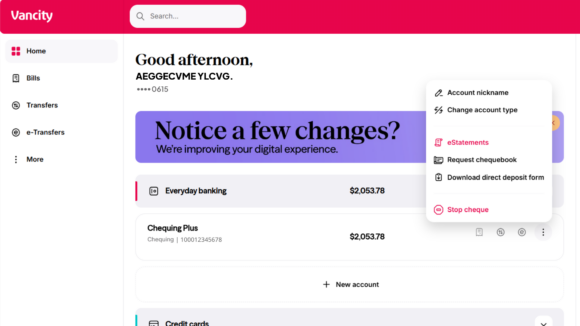 |
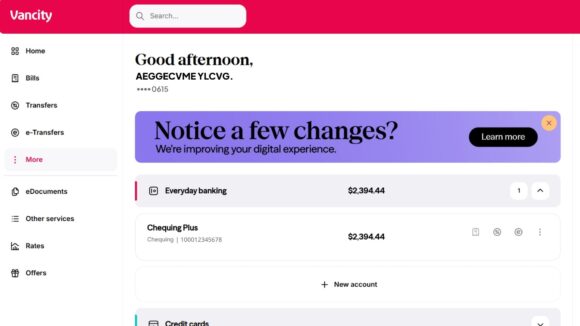
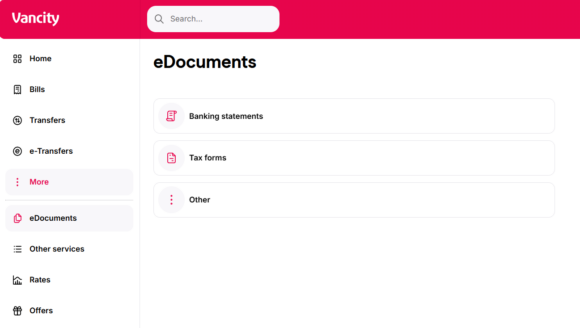
| Another way is to select ‘More’ on the left-hand side, then choose ‘eDocuments’. From the eDocuments page, select ‘Banking statements’. |
  |
| On the Banking statements page, select either ‘Membership’ or ‘Relationship’ numbers on the right-hand menu and the year. | 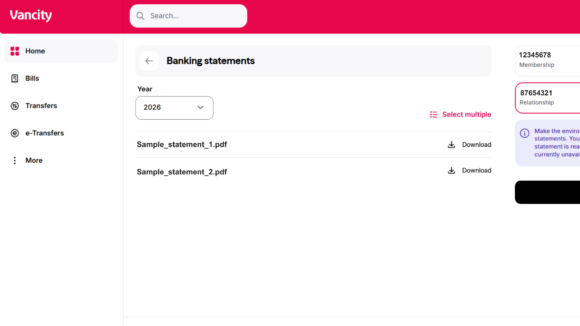 |
| The eStatements you can download will be displayed on your screen. You can also download multiple statements at the same time by clicking ‘Select multiple’. |
|
| Log in to Online Banking and click the three dots on the right-hand side of the account and a menu will pop-up. Another way is to click ‘More’ on the bottom-right of the mobile home screen. |
 |
| If you selected the three dots next to a specific account, choose ‘eStatements’ from the menu that appears. It will lead you to the Banking statements page. | 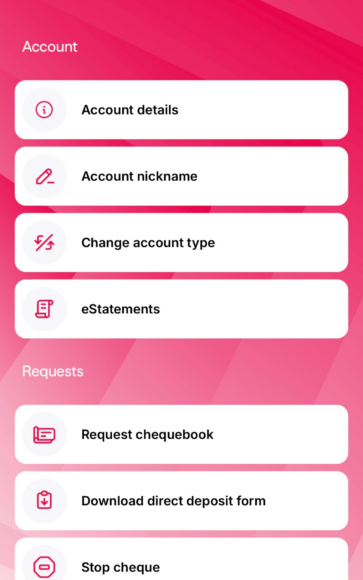 |
| If you selected ‘More’ on the mobile home screen, choose ‘eDocuments’ on the menu that appears. It will lead you to the eDocuments home page. From here, select ‘Banking statements’. | 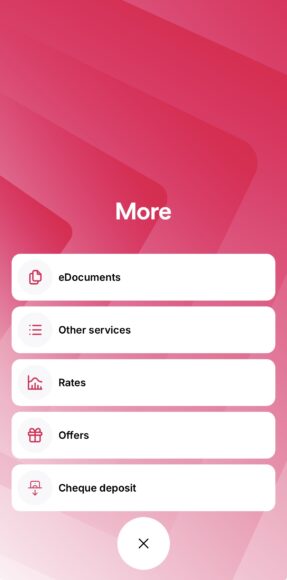 |
| On the eDocuments page, select ‘Banking statements’. | 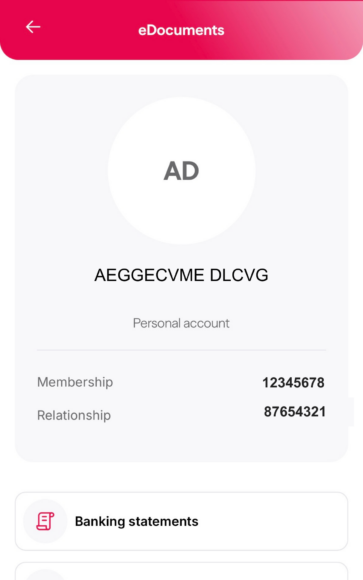 |
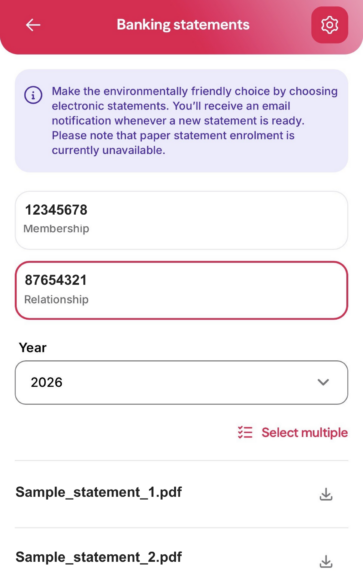
| On the Banking statements page, select either ‘Membership’ or ‘Relationship’ numbers and the year. The eStatements you can download will be displayed on your screen. You can also download multiple statements at the same time by clicking ‘Select multiple’. |
 |
Historical statements issued before January 2017 are not available on this page.
If you haven’t already, we encourage you to Go Paperless.
After opting out of paper statements, you’ll receive an email alert whenever your latest eStatement is ready to view online.
Download a guide to your new statement:
Guide to your new statement for personal banking accounts
Guide to your new statement for business banking accounts