 |
Step 1:
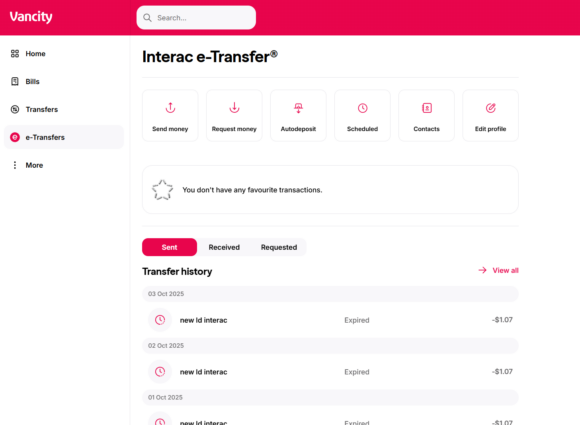
Log into Online Banking using the card you will not keep. From the main menu, click e-Transfers, then select ‘Contacts’ from the expanded options. |

|
Step 2:
Choose a contact to view their details. Copy down the contact information and note the ‘Add Contact’ button located near the top right of the page. |

|
Step 3:
Log out, then log back in using the card you want to keep. Enter the copied information, click ‘Continue’, and confirm to finalize the transfer. |
 |
Step 1:
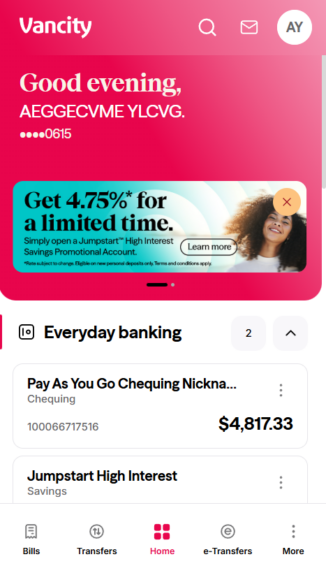
Open the Vancity mobile app and log in using the card you will not keep. Tap the e-Transfers tab from the main menu. |
 |
Step 2:
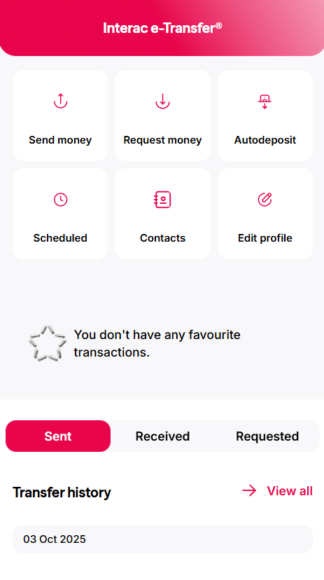
On the next screen, tap ‘Contacts’. |
 |
Step 3:
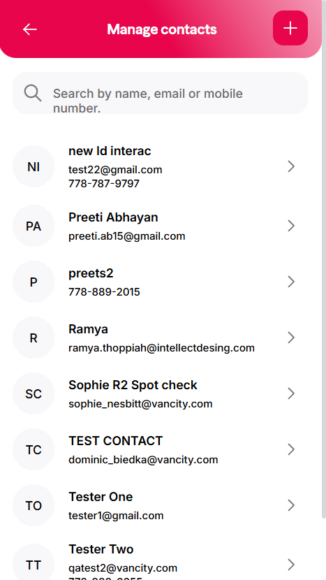
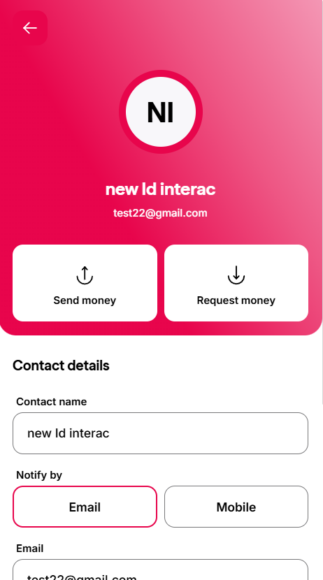
Select the contact you want to transfer. Note the “+” button near the top right of the screen. |
 |
Step 4:
Copy the contact information displayed. |
 |
Step 5:
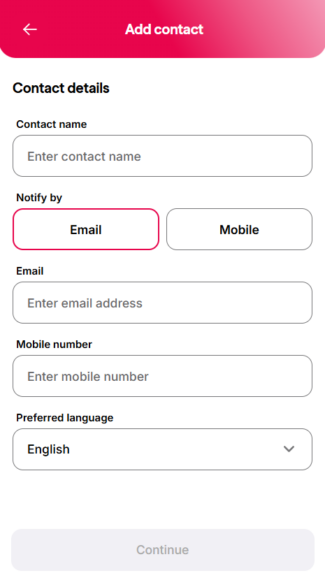
Log out, then log back in using the card you want to keep. Return to the Contacts page and tap the “+” button. Enter the copied information, tap ‘Continue’, and confirm to finalize the transfer. |