Learn how to accept an Interac e-Transfer:
Once you’ve received an Interac notification:
Step 1 – Open the Interac e-Transfer email or text notification.
Step 2 – Click “Deposit your Money”
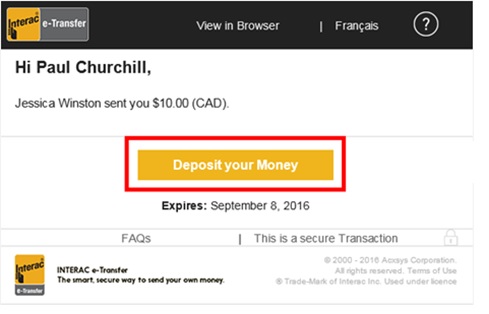
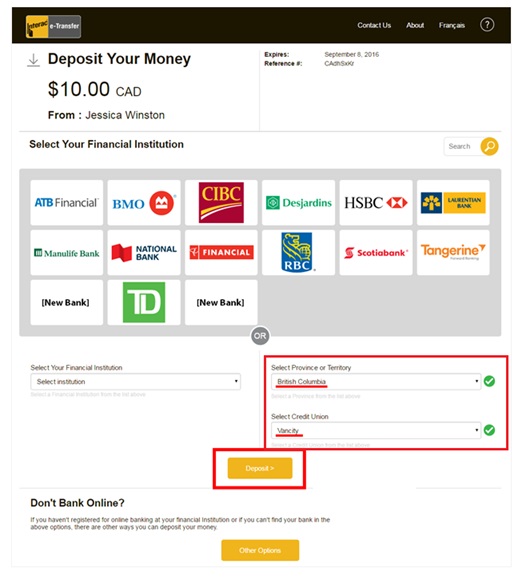
Step 3 – Select “British Columbia” and “Vancity” from the dropdown menus (Note: “Vancity Community Investment Bank” is not the same as Vancity, make sure you select “Vancity”)
Click “Deposit”
Step 4 – Enter the last 10 digits of your MEMBER CARD # and your password.
Click “Log in”
Step 5 – Create an Interac e-Transfer profile if you don’t already have one
Enter new Interac profile details (Name, email, mobile#, method to receive notifications.)
Then, click “Continue”
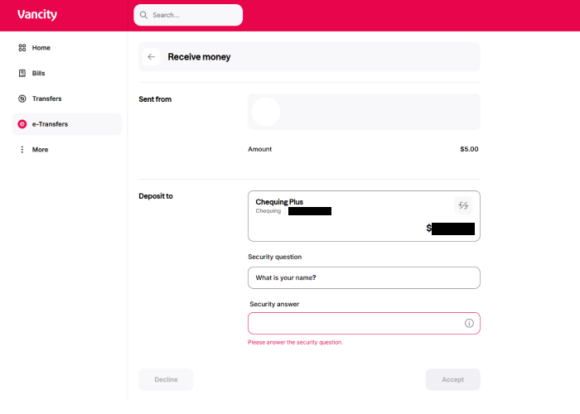
Step 6 – Select the Vancity account you would like the funds deposited into and answer the sender’s Security question.
Then, click the “Accept” button.
To decline the transfer, click the “Decline” button.
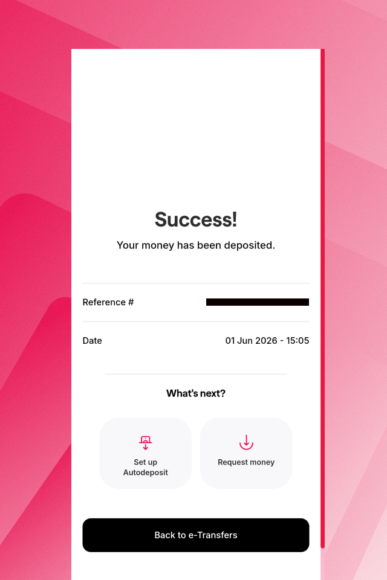
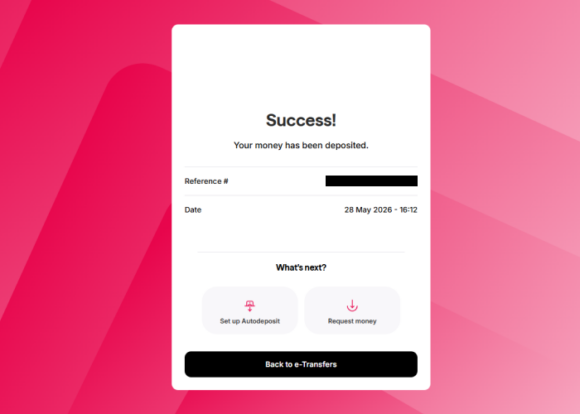
Step 7 – If your security answer is accepted, you’ll receive a success message.
Once you’ve received an INTERAC® notification:
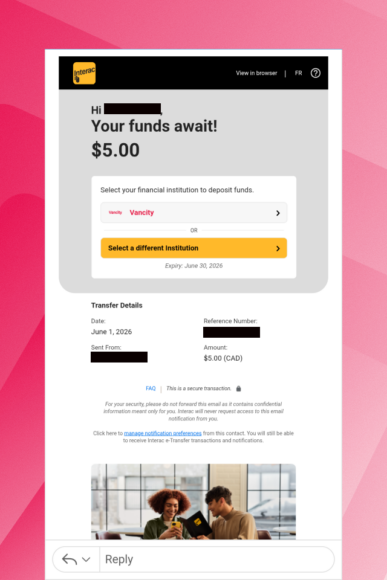
Step 1 – Open the Interac e-Transfer email or text notification
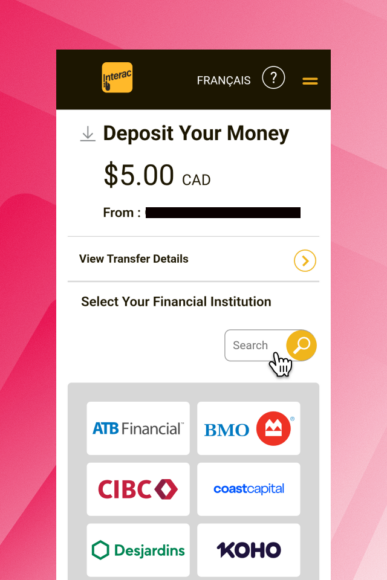
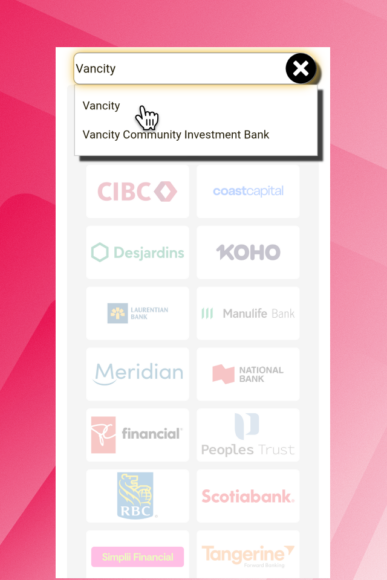
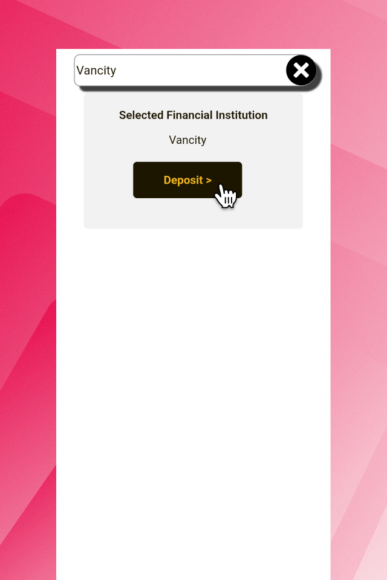
Step 2 – Under Select Your Financial Institution, tap on the search bar and type in ‘Vancity’. Then, select Vancity. Note: “Vancity Community Investment Bank” is not the same as Vancity, make sure you select “Vancity”. Then, click the Deposit button.
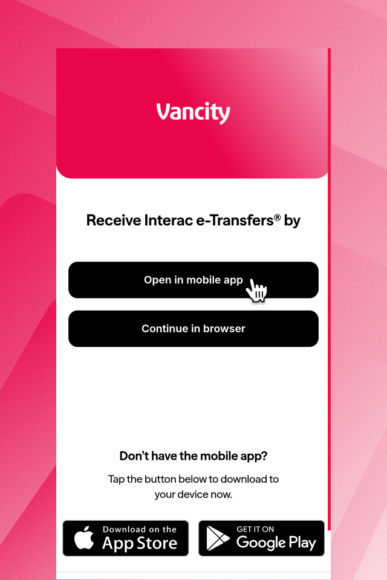
3 – Click on “Open in mobile app”
Step 4 – Enter the last 10 digits of your MEMBER CARD # and your password
Click “Log in”
Step 5 – Create an Interac e-Transfer profile if you don’t already have one
Enter Interac profile details (Name, email, mobile#, method to receive notifications.)
Click “Continue”
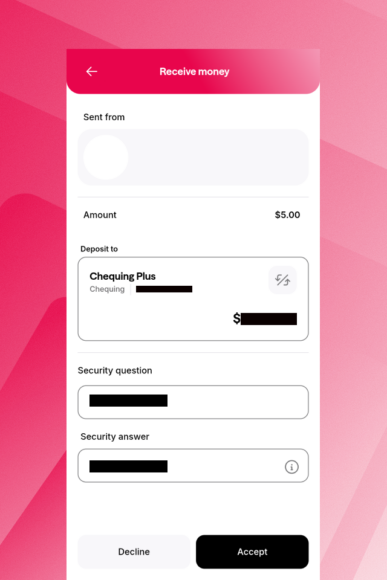
Step 6 – To accept transfer: Select the account you would like to deposit the funds to. Then, enter your Security answer. Then, click the Accept button.
To decline transfer: Enter a valid security answer (say, the word ‘Vancity’). Then, click the Decline button. elect “Decline this transfer because” and type a message to the sender, click “Continue”.
Click “Continue”
Step 7 – If your security answer is accepted, you’ll receive a success message.