
Getting access
You would have received a welcome e-mail sent from your Vancity representative with instructions on logging in to the portal.
| Step 1: Click on the link included in the e-mail. | |
| Step 2: If this is your first time logging in, you will be asked to Create a Password with the specified requirements. |  |
| If you have logged in before, you will be asked for your e-mail and password. | 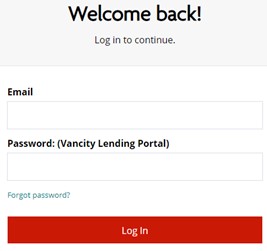 |
| Step 3: After you enter your credentials, click on ‘Log In’. After you log in, you will land on the dashboard. |
Step 1: Navigate to the portal at https://vancity.force.com
Step 2: Click on “Forgot password?”
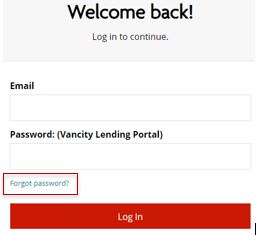
Step 3: Enter the e-mail address that you provided to your Vancity representative and have previously used to log in, and click on “Reset Password”.
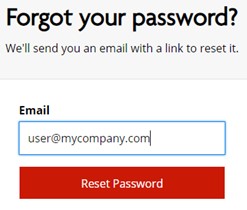
Step 4: You’ll receive an e-mail with a link to reset your password. Click on the link and enter your new password.
Step 5: Once your password is reset, you’ll be able to access the portal right away.
.
Sending and receiving documents
| Step 1: After logging in, click on “Upload Documents”. This will expand the list of all documents your Vancity representative is requesting from you. |
|
| Step 2: For each document, you may “Drag & Drop” a document or click on “browse” to manually select a file from your computer. |  |
| Step 3: When the document has finished uploading, you will see the “Drag & Drop” icon change to a “Replace” icon. You don’t need to save or do anything else. Your document has been sent to Vancity. |
 |
Vancity will show you documents in the portal that you either need to access and fill out or access and store for your records.
| Step 1: After logging in, click on “Download Documents”. This will expand the list of all documents your Vancity representative is sending to you. |
|
| Step 2: Click on “Download” to download that document. |  |
| You may use the “Additional Documents” section to send/upload any other document you may consider necessary. |  |
| Under “Upload Documents”, simply toggle the “Show Previously Completed” switch. When turned on, you will see the uploaded documents appear. |  |
You would have received an e-mail letting you know a document needs further attention.
| Step 1: Click on the link within the e-mail and log into the portal. | 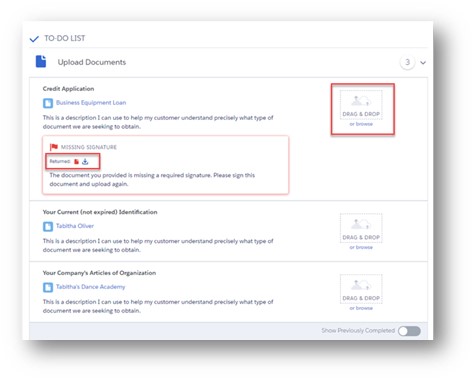 |
| Step 2: Simply “Drag & Drop” or “browse” your computer to upload your new document. |
.
FAQs
You might need to expand the “Upload Documents” and “Download Documents” drop downs by clicking on them.
If you still cannot see any document, please contact your Vancity representative.
Each document request contains a reference to the specific loan type and dollar amount. If further clarification is required, please let your Vancity representative know as they can provide additional detail for each document request.
As example, this is what a document request for a USD $75000 loan looks like: 
You may have to do a page refresh of the browser screen. To check and see if the upload worked, have a look under the “Show Previously Completed” toggle button.
Make sure the “Show Previously Completed” toggle is turned on.
Otherwise, the set time to access the file may have expired and you’ll need to contact your Vancity representative.